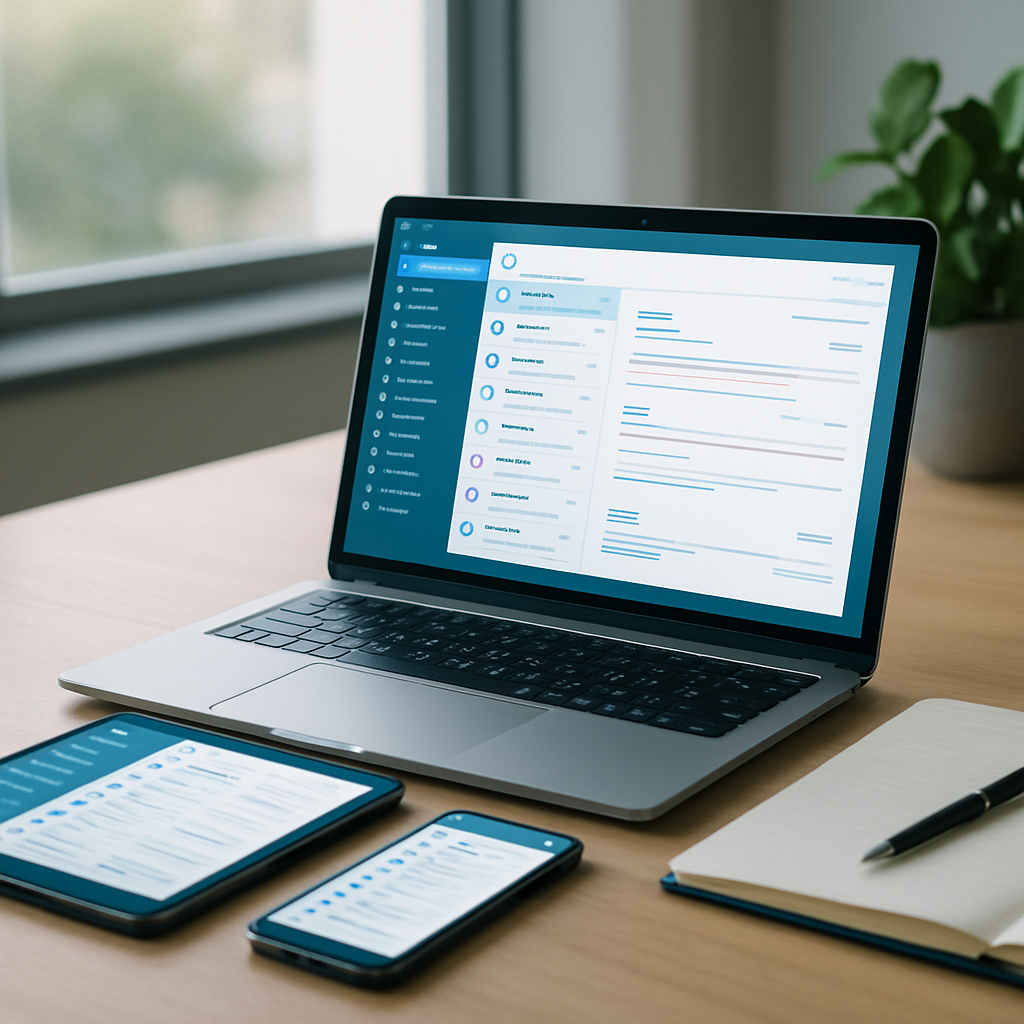
You have just activated your Nordnet subscription and want to finally take control of your messaging? This complete guide accompanies you, step by step, to access your mailbox on the web, configure it in a desktop or mobile client, optimize security, and resolve potential issues. In less than 5 minutes, you will master IMAP/SMTP settings, discover tips to avoid spam, and know how to ensure the confidentiality of your exchanges.
Somaire
Introduction to Nordnet Messaging and Its Advantages
Nordnet includes a robust messaging service designed for individuals and professionals. Its **webmail interface** combines simplicity and advanced features: organization by folders, anti-spam filters, synchronization with your calendars. Unlike some free webmails, Nordnet offers you a generous quota (up to **10 GB** of storage depending on your subscription) and responsive technical support.
This service relies on standard protocols (IMAP, POP, SMTP), allowing you to use it both via your browser and from a dedicated client. The real plus? Native integration with your Nordnet Internet access: no hidden fees, an availability rate above **99.9%**, and regular backups of your messages.
Prerequisites and Access to Your Account
Before starting the configuration, make sure you have your Nordnet **username** and **password**, provided at subscription. If you encounter an authentication issue, visiting the “Forgot Password” area on the site will allow you to reset your access in a few clicks.
Your Internet connection plays a key role: in case of use in a company or on a restricted network, remember to check the rotating proxy configuration to ensure smooth browsing. For example, if you need to configure a secure network environment, including a rotating proxy configuration, this can prevent blockages and ensure uninterrupted delivery of your emails.
Access and customize your Nordnet webmail
Login and interface overview
Go to messagerie.nordnet.fr then enter your credentials. In a few seconds, you are in your inbox. The left column displays your folders (Inbox, Sent, Drafts), while a top banner offers options to compose a message, manage filters, or check your calendar.
Settings and signatures
Clicking on the “Settings” icon (gear wheel) opens a menu full of possibilities:
- Signature: create an automatic footer, to be enhanced with your logo.
- Filtering: automatically redirect certain senders.
- Notifications: enable sound or visual alerts upon arrival of a new email.
- Language and timezone: adapt the interface to your habits.
Import/export contacts
You can import your address book in CSV, vCard, or LDIF format. To do this, go to the “Contacts” section, choose “Import,” then select the file on your computer. A wizard guides you in mapping the fields (Last Name, First Name, Email Address).
Configuration on mail client (Outlook, Thunderbird, mobile)
For a more integrated use, a dedicated client is often preferred. The settings are identical regardless of the tool: Outlook, Thunderbird, iOS or Android Mail. Here is a summary table of essential parameters:
| Parameter | Value |
|---|---|
| IMAP Server | imap.nordnet.fr |
| IMAP Port | 993 (SSL/TLS) |
| POP Server | pop.nordnet.fr |
| POP Port | 995 (SSL/TLS) |
| SMTP Server | smtp.nordnet.fr |
| SMTP Port | 465 (SSL/TLS) or 587 (STARTTLS) |
In Outlook, create a new account, choose “Manual setup,” and enter this information. Thunderbird follows a similar wizard. On mobile, select “Other” then manually add the IMAP/SMTP to avoid approximations.
Pro tip: enable **push synchronization** if the app offers it, to instantly receive your messages without checking your inbox at regular intervals.
Tips and troubleshooting common issues
Some issues recur regularly: emails not received, slow display, or sending blockage. Here is how to react:
- Check the quota: storage overrun = refusal to receive.
- Inspect filters: an overly restrictive filter can send messages to the Spam folder.
- Test sending: send to your own address to identify a possible loop.
- Check the SMTP queue: a port or authentication problem often appears there.
In case of persistent blockage, restart your client, clear its caches, or temporarily disable your antivirus. Most of the time, these actions are enough to unblock the situation.
Security and Best Practices
Protecting your email is primarily about preventing data theft or hacking. Enable SSL/TLS encryption on the server side, and set up two-factor authentication if Nordnet offers it. A complex, unique password that is regularly updated is essential.
“The security of email exchanges depends as much on the robustness of the protocol as on the vigilance of the user.”
Dr. Sophie Martin, Cybersecurity Researcher, INRIA – 2021
Finally, stay alert to attachments and suspicious links. If an unknown sender sends you a document, prefer opening it in a sandbox environment or on a dedicated workstation.
FAQ – Frequently Asked Questions
- How do I reset my Nordnet password?
- Go to the Nordnet login page, click on “Forgot password” and follow the instructions. You will receive a reset link via SMS or an alternative email.
- Can I have multiple aliases on my Nordnet mailbox?
- Yes, Nordnet allows the creation of aliases in the form [email protected]. They are configured in your webmail settings, under the “Aliases and forwarding” section.
- IMAP or POP: which one should I choose?
- If you check your emails from multiple devices, prefer **IMAP** to synchronize all your folders. POP downloads messages locally and can complicate multi-device access.
- Why do my emails go to spam?
- Several reasons: mass sending without SPF/DKIM authentication, overly strict filters, or blacklists. Check your DNS records and your domain’s reputation.
- How do I increase storage space?
- Nordnet subscriptions include storage tiers. To upgrade to 10 GB, change your plan in the client area or contact customer service.
- Is there a Nordnet Messaging mobile app?
- No, Nordnet does not offer a dedicated app. You need to configure your account via your smartphone’s native app (iOS Mail or Android).
- How do I import my old messages?
- Use the import/export function in mbox or PST format. In Outlook, select “File > Import/Export.” In Thunderbird, enable the ImportExportTools NG extension.
- Can I share my calendar linked to the email?
- Yes, in webmail, the “Calendar” section allows inviting contacts and publishing a read-only calendar via an iCal URL.
“According to ARCEP (2022), more than 76% of users prefer a secure email connection for their professional exchanges.”


