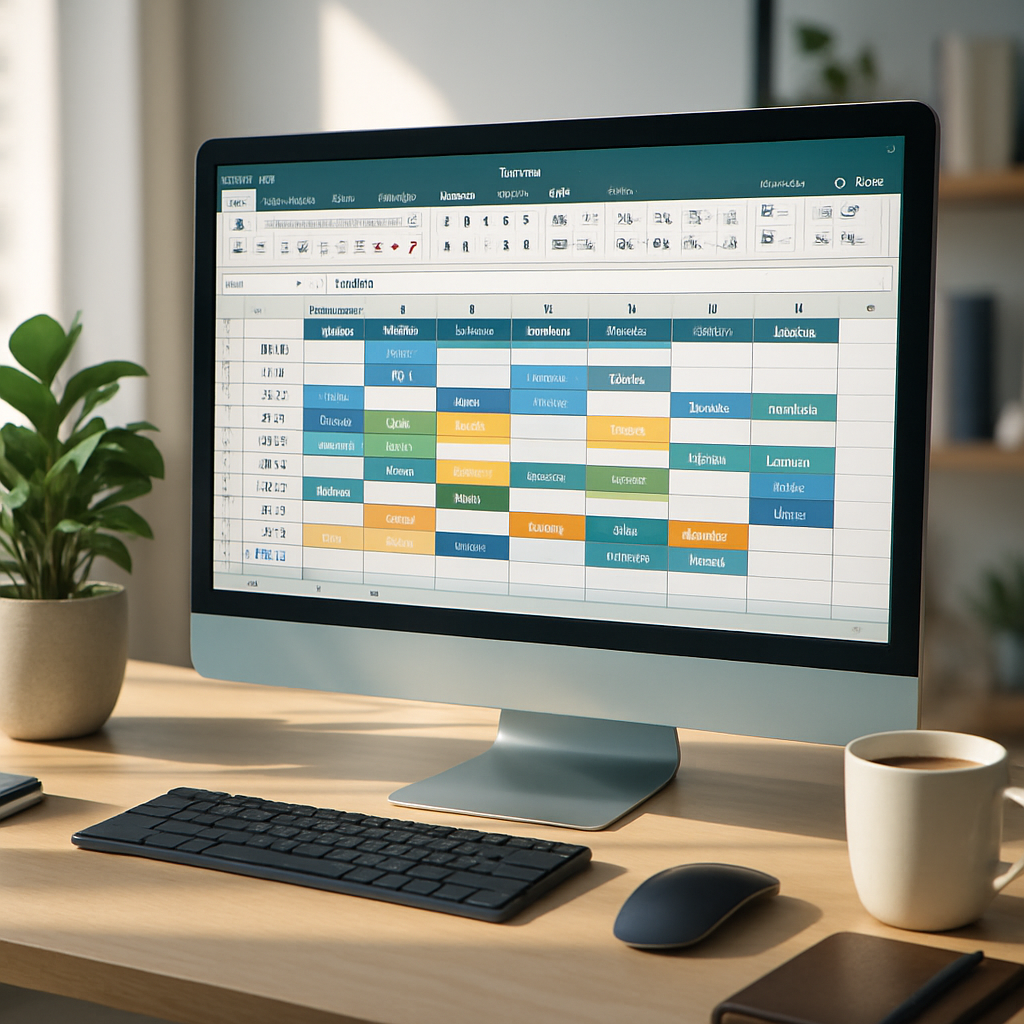
Organizing your time has never been as crucial in our overloaded daily lives. Between work, personal appointments, family activities, and various projects, it becomes essential to have a reliable tool to visualize and plan your week. Excel, with its flexibility and calculation power, proves to be a valuable ally for creating a custom schedule, adaptable to all situations. Far from rigid applications and preset templates, Excel offers you the freedom to design a schedule that exactly matches your needs.
📊 Excel transforms time management into an infinitely customizable experience. Unlike dedicated apps, you control every aspect: colors, formulas, formatting, and structure. Perfect for those who want to break away from the beaten path.
⏰ Save a ton of time with automations: data validation, calculation formulas, conditional formatting. These features prevent input errors and tedious calculations, ensuring your schedule is always up-to-date and consistent.
🎨 Visual customization is not just about aesthetics. It improves the readability and efficiency of your schedule. Use colors to differentiate activity types, and borders to visually structure your days.
🔄 Think scalability from the start. Your weekly schedule must be able to adapt to unforeseen changes. Formulas like XLOOKUP or SUMIFS allow you to adjust your planning without rebuilding everything.
Somaire
Why choose Excel for your weekly schedule?
You might think Excel is limited to managing financial or statistical data, but think again. Its structured grid is perfectly suited for creating schedules, offering flexibility that few specialized applications can match. The major advantage lies in customization: you decide the number of columns, cell widths, colors, and even formulas that will automate certain tasks.
Unlike a paper planner or a mobile app, Excel allows you to duplicate, modify, and adjust your schedule in just a few clicks. Need to add a new recurring activity? A simple copy-paste is enough. Want to calculate the total time spent on a certain category of activities? A SUMIFS formula will do the trick. This adaptability makes Excel an ideal tool for those who reject ready-made solutions and prefer to build their own organizational system.

The basic structure: creating the skeleton of your schedule
Start by defining the general architecture of your week. The first column will generally contain the time slots, while the following columns will represent the days of the week. For a detailed view, break your day into 30-minute or one-hour segments. Feel free to merge certain cells for fixed time slots such as work time or sleeping hours.
Conditional formatting will become your best friend to visually distinguish types of activities. Use different colors for work, leisure, family obligations, and commuting times. This visual coding allows you to instantly grasp the balance of your week at a glance. Also consider freezing panes to keep column and row headers visible when scrolling through your schedule.
Optimize data entry with drop-down lists
Nothing is more tedious than manually typing the same activities week after week. Excel allows you to create drop-down lists that standardize data entry and prevent typos. Select the range of cells where you want to insert these lists, then go to Data > Data Validation. Choose “List” as the validation criterion and specify the range containing your typical activities.
To go further, you can make these lists dynamic. If you add a new activity to your main list, it will automatically appear in all linked drop-down lists. This trick will save you precious time and ensure the consistency of your schedule over time.
Automate calculations to save time
An intelligent schedule does not just display activities: it calculates and analyzes. Start by summing the time dedicated to each type of activity. The SUMIFS function allows you to total hours based on multiple criteria. For example, you can calculate the total work time over the week, or the time spent in meetings on Tuesday.
For time slots, use a custom format [h]:mm which correctly displays totals exceeding 24 hours. This subtlety avoids confusion when reviewing your week. If you need to round certain slots up or down to the nearest hour to simplify planning, the ROUNDUP and ROUNDDOWN functions will become indispensable.
| Type of activity | Monday | Tuesday | Wednesday | Thursday | Friday | Total |
|---|---|---|---|---|---|---|
| Work | 8:00 | 7:30 | 6:00 | 8:15 | 7:45 | 37:30 |
| Leisure | 2:00 | 1:30 | 3:00 | 2:00 | 3:30 | 12:00 |
| Transport | 1:30 | 1:15 | 1:00 | 1:45 | 1:15 | 6:45 |
Advanced customization: make your schedule effective
A good schedule is measured not only by its accuracy but also by its ability to save you time daily. Integrate visual reminders for important deadlines: use conditional formatting to automatically color cells containing deadlines within 48 hours. Add comments in cells to note important details such as an appointment address or a contact’s phone number.
For those managing multiple projects simultaneously, creating a Gantt chart directly in Excel allows you to visualize task progress over the week. Although less sophisticated than dedicated software, Excel offers enough features to track the progress of your personal or professional projects.
Importing and exporting data
Your schedule does not exist in isolation. You may need to import data from other sources, such as a CSV file containing your work hours or medical appointments. Excel handles these imports quite well, provided you pay attention to the date and time formats during the import.
The reverse is also true: export your schedule to PDF to print it neatly or share it with collaborators. Use the page layout to define a print area that includes only the relevant cells, without formulas or hidden columns.
Common mistakes and how to avoid them
Most problems encountered when creating an Excel schedule stem from poor structural practices. Absolutely avoid merging cells containing calculation formulas, as this makes your totals inaccurate or even erroneous. Prefer visual formatting with borders and colors to simulate merged cells while preserving the integrity of your data.
Another classic pitfall: managing timezones and schedule changes. If your schedule covers multiple time zones or must adapt to daylight saving time changes, use formulas that take these particularities into account. A simple manual addition could cause you to lose or gain an hour without realizing it.
- Not freezing panes: you lose the reference of days and hours when scrolling
- Forgetting to save different versions of your schedule
- Neglecting compatibility if you share the file with users on different versions of Excel
- Visually overloading with too many colors or information
FAQ: Frequently Asked Questions about Excel schedules
How can I make my schedule update automatically?
Use dynamic formulas like XLOOKUP to automatically retrieve information from an external database. Thus, when you modify the database, the schedule updates instantly.
Can I integrate my Excel schedule into Outlook or Google Calendar?
Yes, by exporting your schedule in CSV format and importing this file into your calendar. Check the date and time formats to avoid discrepancies.
How do I manage activities that vary from week to week?
Create a “Templates” tab with different versions of your activities, then use conditional drop-down lists to display only the relevant options depending on the context.
Is Excel really better than a dedicated app?
It depends on your needs. Excel excels in customization and automation, while dedicated apps often offer better multi-device synchronization.
