
| Key Points | Details to Remember |
|---|---|
| 📖 Definition | Power Query is an ETL tool integrated into Excel to import, transform, and combine data. |
| 🚀 Benefits | Automation of repetitive tasks and one-click updates. |
| ⚙️ How it works | Queries that chain together to apply filters, joins, and transformations. |
| 🔌 Import Methods | CSV files, SQL, Web or other external sources. |
| 🛠️ Associated Tools | Power Query Editor, query area, and connection management pane. |
| 📊 Applications | Consolidated reports, dashboards, and cross-analyses. |
Gathering data from various formats and locations can quickly become a headache: missing columns, inconsistent names, different encodings… Power Query acts as a technical mediator, capable of bridging CSV files, an SQL database, or even a web feed. This guide details step-by-step how to use it to merge multiple sources into a single model, ready for analysis.
Somaire
Why merge multiple data sources?
When you use regular dashboards or ad hoc reports, unifying streams saves you from manual duplicates and copy-paste errors. For example, sales data stored in SQL must be combined with a price list provided in CSV. Without an ETL tool, you juggle between tabs and macros, but Power Query orchestrates these operations in the background.
“Power Query is a bit like the conductor of your data: each query plays its part before merging in harmony.”
Prerequisites and setting up Power Query
Check your Excel version
Power Query is natively integrated into Excel 2016 and later editions. If you use an earlier version, a free add-in is available for Excel 2010 and 2013. The goal is to have the Data ribbon with the Get & Transform group.
Activate the Data tab
In the ribbon, make sure the Power Query icon (or “Get Data”) is visible. Otherwise, go to File > Options > Add-ins, select COM Add-in at the bottom, click Go, and check Power Query.
Steps to import and merge your sources
Import data from a CSV file
To get started, click on Data > Get Data > From File > From Text/CSV file. Select your document and let Power Query automatically detect the delimiter. If multiple encoding errors appear, refer to a dedicated procedure for CSV file in Excel.

Connect to a SQL database
Go to Data > Get Data > From Database > From SQL Server. Provide the server name and the database. You can choose Import or DirectQuery depending on your refresh needs. This connection saves you from manually recreating each table: the query centralizes the records. For more options, the SQL database method details advanced parameters.
Add Web queries or other sources
Power Query avoids being limited to local files. You can consume a REST API, a JSON/XML feed, or even Excel online. The From Web option allows you to enter the URL. The editor will then present a grid to transform.
Apply transformations and clean
Before merging, you need to align and clean each query. Remove unnecessary columns, rename headers, change data types. For finer operations, consult a tutorial on data cleaning in Excel.
Merge queries
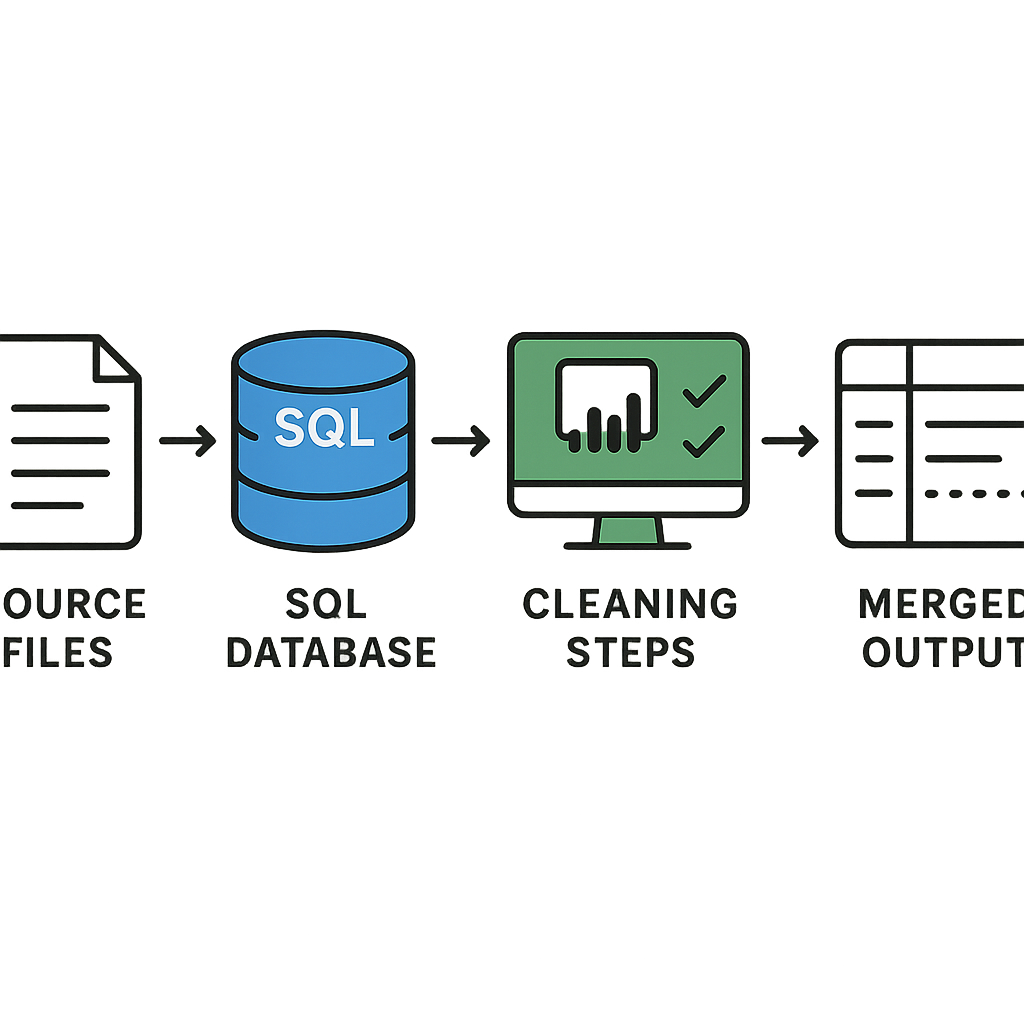
Once your queries are ready, click on Home > Combine > Merge Queries. Select the primary table then the secondary table, choose the key column in each source. The operation resembles a SQL join: INNER, LEFT, RIGHT, or FULL depending on whether you want to keep all rows or only those in common. Confirm, then expand the new column to include the desired fields.
Tips to optimize your merges
- Limit columns before the join: fewer columns = faster performance.
- Filter unnecessary rows as early as possible to lighten queries.
- Use the Reduce Rows option to retrieve a sample before processing the entire dataset.
- Parameterize your queries: create variables to adapt file paths without recreating everything.
- Update queries with one click via Refresh All in the Data ribbon.
Concrete usage scenarios
Imagine a marketing department that receives a CSV of leads, a CRM export, and a Web analytics report every week. Thanks to Power Query, it assembles everything into the same model: at each refresh, the SQL database, the CSV file, and the analytics data automatically reconcile. The campaign tracking report always stays up to date.
FAQ
- What is the difference between Merge and Append queries?
- Merge performs a join between two tables based on key columns, while Append stacks two tables with identical structural linkage.
- Can more than two sources be merged?
- Yes: after merging A and B, you apply a new merge on the result with C, and so on.
- Are the transformations documented?
- Each step appears in the “Applied Steps” pane, allowing you to go back or modify a filter, a rename, or a data type.
- What happens if a key column changes type?
- The merge will fail. You must then go back to the transformation step to standardize the types on the affected columns.
- Is it possible to share queries?
- Yes, by exporting the query in .pq format or by saving the workbook and sharing it, all connections follow.
