| Key Points | Details to Remember |
|---|---|
| 📦 Definition | Visualizes the distribution of a data set |
| 🔢 Quartiles | Separates the data into four equal parts |
| ➖ Median | Marks the central point of your distribution |
| 👩🏫 Interpretation | Highlights anomalies and dispersion |
| 🎨 Customization | Adapts colors, sizes, and labels |
| ⚙️ Process | Follows a few simple steps in Excel |
| 📈 Usage | Comparable to other statistical charts |
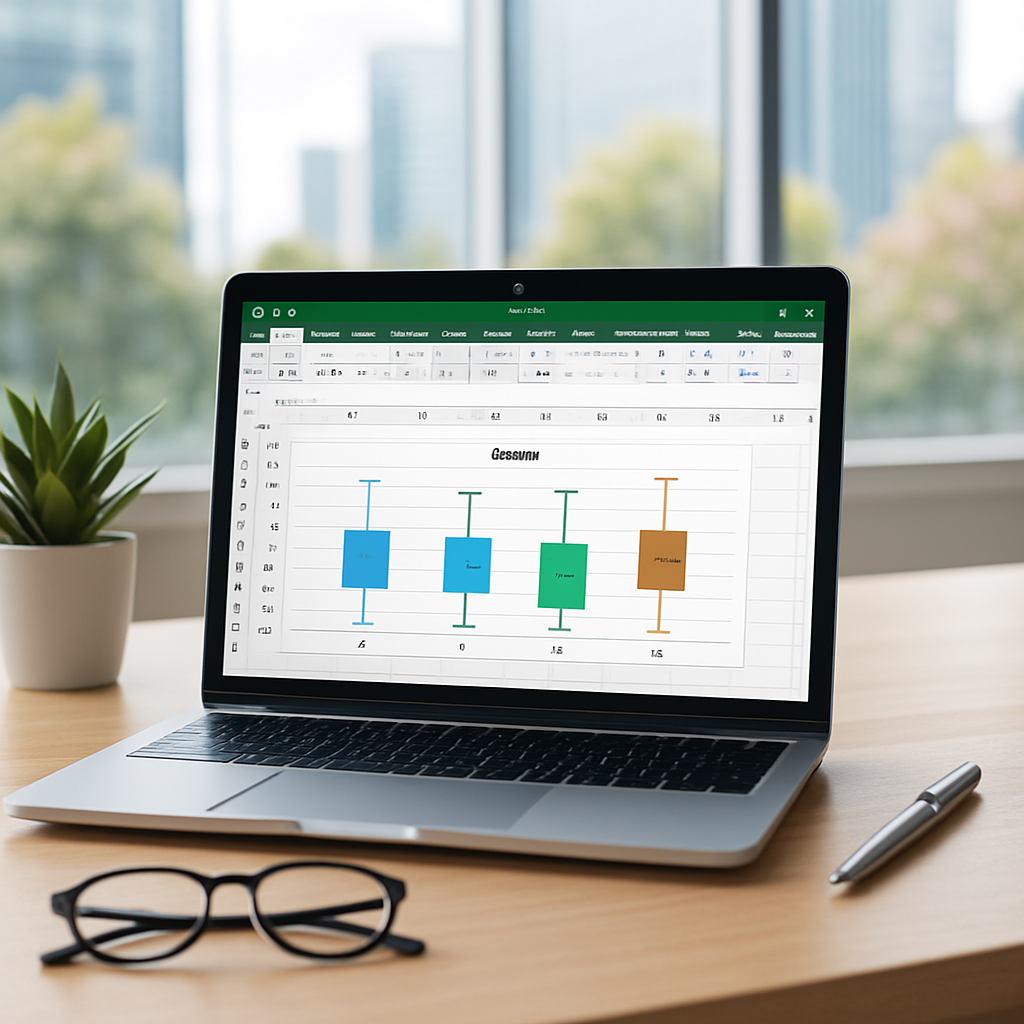
The box and whisker plot, often called a boxplot, stands out as one of the most effective tools to analyze the distribution of your data. Rather than simply listing numbers, it highlights the median, quartiles, and extreme values, thus revealing the internal structure of your statistical series. In Excel, this visualization has become more accessible in recent versions, but its setup and interpretation require some attention. Follow the guide to understand why and how to fully leverage this type of chart.
Somaire
What is a boxplot and why use it?
Unlike a histogram that shows the frequency of data according to intervals, the boxplot synthesizes several key indicators into a single visual:
- the median (central line);
- the quartiles (faces of the box);
- the whiskers (minimum and maximum values excluding outliers);
- the outliers (atypical points).
This format facilitates the comparison of multiple series side by side, especially when one wants to assess dispersion, detect asymmetries, or point out outlier values. In a professional context – finance, biostatistics, or quality control – this representation is favored for its ability to reveal at a glance the variability of a data set.
Advantages and Use Cases
Choosing a boxplot in Excel means gaining clarity. It allows you to:
- easily compare multiple samples without visual overload;
- identify extreme points (utopias before digging deeper);
- provide a quick overview, complementary to a Pareto chart or trend curves;
- strengthen a statistical report by presenting dispersion in a standardized way.
For example, when facing several production processes, a boxplot will highlight the one that remains the most stable (narrow box) or the one that frequently generates outlier values.
Creating a Box and Whisker Chart in Excel
1. Prepare your dataset
Before any manipulation, clearly organize your columns: each series of values must occupy a distinct field. Make sure there are no empty cells or text values in the range. If you are dealing with multiple categories (e.g., sales by region), place them in headers and your data in the associated cells below.
2. Insert the boxplot
With your data selected, go to the Insert tab and then locate the Statistical Charts menu. Then choose “Box and Whisker”. Excel automatically generates the box, median line, and whiskers.

If this option does not appear, check your Excel version or add the chart type via the dropdown menu “More Charts”.
3. Basic adjustments
By clicking on one of the chart elements (box, whiskers, points), a new Format section activates. You can:
- change the fill color of the box;
- adjust the thickness and style of the whiskers;
- manage the size or font of the labels.
These quick settings already make your distribution appear more personalized, ready to be included in a report or presentation.
Advanced Customization and Tips
To go further, open the Format Data Series pane (right-click → “Format Data Series”). Several options are at your disposal:
- Set the percentage of the whisker length (1.5× the interquartile range by default);
- Hide or color the outliers differently to better highlight certain values;
- Overlay another chart, for example a combined chart with secondary axes, to juxtapose median and overall trend;
- Quickly compare with sparkline charts or a Gantt chart to enrich your data storytelling.

Interpreting a Boxplot
The analysis of a box-and-whisker plot is based on two main axes:
- the width of the box: the narrower it is, the more homogeneous your data are;
- the length of the whiskers: they reveal the range of your normal values and help identify anomalies.
The position of the median (center of the box) indicates symmetry or skewness. A shift downward or upward reflects a strong concentration on one side. One or two extreme outliers encourage investigating the source of these unusual values.
FAQ
1. Can I create a boxplot in an older version of Excel?
If your Excel does not offer the “Box and Whisker” type, it is possible to manually create this chart using stacked series and quartile calculations, but it is much more tedious. An update or using Excel 2016+ greatly simplifies the procedure.
2. How to manage multiple series in the same boxplot?
Select all your data columns simultaneously before inserting the boxplot. Excel then displays each set side by side, allowing immediate visual comparison.
3. What is the difference with a histogram?
Unlike the histogram which counts the number of values per interval, the boxplot shows how these values are distributed (quartiles, median…). The histogram is preferred for frequency and the boxplot for dispersion.
4. Can the whisker calculation be customized?
Yes: in the “Format Data Series” pane, you adjust the whisker length as a percentage or as a multiple of the interquartile range.
5. What is the advantage of the boxplot compared to a scatter plot?
The scatter plot reveals each value individually, whereas the boxplot summarizes the whole in a few key indicators, ideal for comparing multiple series without overloading the visual.
{
“@context”: “https://schema.org”,
“@type”: “FAQPage”,
“mainEntity”: [
{
“@type”: “Question”,
“name”: “Can I create a boxplot in an older version of Excel?”,
“acceptedAnswer”: {
“@type”: “Answer”,
“text”: “If your Excel does not offer the “Box and Whisker” type, it is possible to manually create this chart using stacked series and quartile calculations, but it is much more tedious.”
}
},
{
“@type”: “Question”,
“name”: “How to manage multiple series in the same boxplot?”,
“acceptedAnswer”: {
“@type”: “Answer”,
“text”: “Select all your data columns simultaneously before inserting the boxplot. Excel then displays each set side by side.”
}
},
{
“@type”: “Question”,
“name”: “What is the difference with a histogram?”,
“acceptedAnswer”: {
“@type”: “Answer”,
“text”: “The histogram counts the number of values per interval, whereas the boxplot shows how these values are distributed (quartiles, median…).”
}
}
]
}
{
“@context”: “https://schema.org”,
“@type”: “WebPage”,
“about”: {
“@type”: “Thing”,
“name”: “Box and Whisker Plot in Excel”
},
“keywords”: [“boxplot”, “Excel”, “quartiles”, “whiskers”, “distribution”]
}
