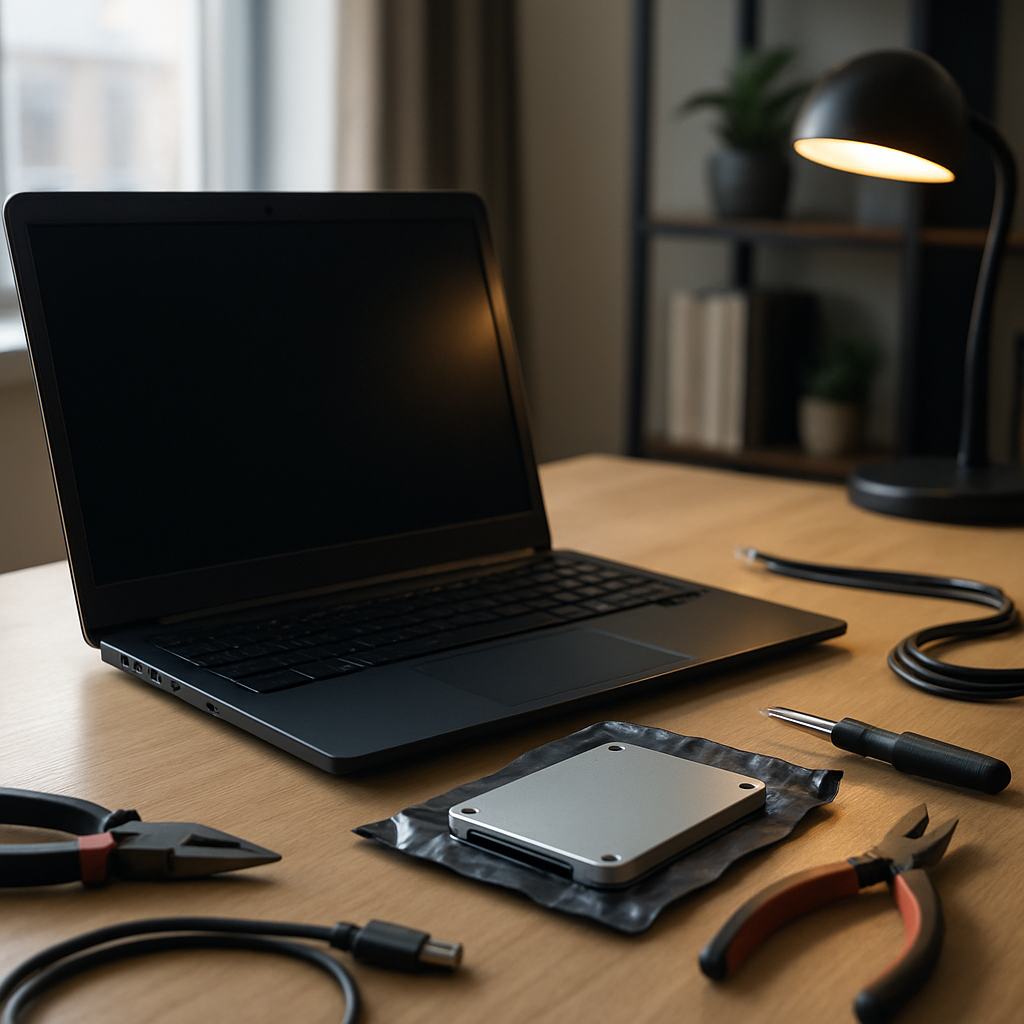
Installing an SSD radically changes a PC’s responsiveness, but sometimes the joy turns into a black screen at startup. This article explains why the display may disappear after adding a new drive, how to isolate the source of the problem, and what actions to take — without taking unnecessary risks with your data. The approach is practical: hardware tests, BIOS/UEFI settings, boot checks, and quick solutions to regain control.
Somaire
In brief
🔧 Quick diagnosis: if the screen remains black, start by checking the SATA/Power connections and the boot order in the BIOS/UEFI. These two causes account for the majority of cases.
💾 Compatibility and formatting: a new SSD may require a mode change (AHCI/IDE/RAID) or initialization via a recovery media. If you had Windows on another drive, check the boot option.
🛠️ Safe troubleshooting: temporarily unplug other peripherals, test the SSD on another port or PC, and keep a backup: the main risk remains data loss if partitions are handled.
📚 Estimated time: between 15 minutes for a simple hardware check and 1–2 hours for a clean reinstall or full system migration.
Why the screen goes black after installing an SSD
One might think that adding a drive is trivial, yet the black screen indicates an early failure in the boot process. Two main categories of explanations dominate: purely hardware causes (poorly connected cable, insufficient power, defective port) and software causes (incorrect boot order, SATA mode incompatibility, missing drivers or unrecognized partition table).
In reality, these categories often overlap. For example, a BIOS set to RAID mode can prevent a Windows clone from an old drive from booting properly on a newly installed SSD. Similarly, a firmware update for the SSD or BIOS can sometimes restore compatibility. Understanding the boot sequence — from POST to loading the boot manager — helps target the source of the problem without guesswork.
Hardware Checks (Quick and Effective)
Start with the obvious: power and cables. A poorly seated SATA cable or a loose power cable is enough to prevent the SSD from being detected, which will often result in a black screen or a very brief error message. Take the time to completely shut down the PC, open the case, and recheck the connectors with a firm but gentle grip.
Next, test the slot: connect the SSD to another SATA port or use a USB-SATA adapter on another computer. If the drive appears elsewhere, the motherboard port or controller is suspect. Finally, consider the power supply: on compact setups or older power supplies, the available voltage may be just sufficient for HDDs but unstable with a new device.
Hardware Checklist
- Check the SATA connection and the power connection.
- Test the SSD on another port or another PC via USB-SATA.
- Disable non-essential USB devices during startup.
- Check the case power supply (power compatibility, modular cables).
Software and BIOS/UEFI Checks
If the hardware seems sound, dive into the BIOS/UEFI. Most modern PCs use UEFI; if your initial operating system was installed in Legacy/MBR mode, and the SSD was prepared in GPT, there may be a conflict. The boot order is the first place where you see a logical error: if the SSD is not first, the system tries another device and may remain stuck without display if the POST is interrupted by an incompatible device.
Also consider the SATA mode: switch to AHCI to take advantage of NVMe/SSD performance, unless you depend on hardware RAID. Some motherboards require a specific setting: a BIOS firmware update sometimes fixes recognition of new NVMe or SATA SSDs.
| Parameter | Recommended Value | Why |
|---|---|---|
| SATA Mode | AHCI | Better performance and SSD compatibility |
| Boot Mode | UEFI (for GPT) | Necessary for modern systems and Secure Boot security |
| Boot Order | SSD first | Prevents the PC from trying an empty disk or a USB device |
Step-by-Step Troubleshooting
Here is a structured, progressive, and least intrusive approach possible. The idea is to isolate the source of the problem starting from the simplest to the heaviest operation.
1) Turn off the PC and check the connections. 2) Boot with only the screen, keyboard, mouse, and SSD. 3) If the screen is black but you hear beeps, note the code — it is provided by the motherboard manual. 4) Enter the BIOS/UEFI: if the SSD appears, adjust the boot order and SATA mode. 5) If the BIOS does not see the SSD, test it on another port or machine. 6) If the SSD is detected but Windows does not start, try the Windows repair tool from a bootable USB key or restore the boot manager with the bootrec commands (if necessary).
Common Cases and Targeted Solutions
System disk cloning: if you cloned an old disk to the SSD, check that the partition table (MBR vs GPT) and the boot mode match. A poorly configured clone often results in a black screen without any message. Sometimes, a simple BIOS adjustment (switching to Legacy) is enough to boot the clone.
NVMe SSD not detected: on some PCs, M.2 slots coexist with SATA ports and disable each other. Consult the motherboard documentation and rearrange if necessary. A BIOS update regularly fixes these incompatibilities between NVMe controllers and motherboard firmware.

Preserving and Recovering Data
Data security must come first. Before any disassembly or formatting, if possible, create a disk image of the SSD (or the source disk) with a cloning or backup tool. If the SSD is not recognized by the BIOS but is detectable via a USB adapter on another PC, immediately copy the critical data.
In case of boot loss, recovery utilities (BCD reconstruction, chkdsk, third-party recovery tools) can restore access without erasing files. But if the disk physically has defective sectors, it is better to clone to another medium before attempting destructive repairs.
Tips to Avoid the Problem
Always plan a backup before replacing a system disk. When cloning, check the options of the chosen solution: partition alignment, copying the MBR/GPT, and setting active partitions. Keep your firmware up to date (motherboard and SSD) and consult the manufacturer’s compatibility notes.
Finally, if you use a laptop, favor an SSD recommended by the manufacturer or an NVMe model listed as compatible in the documentation: space, interface, and cooling constraints can be surprising on slim models.
FAQ
Why does the PC display a black screen only after installing the SSD?
Most often, because the BIOS/UEFI does not find a bootable device: poorly connected cable, uninitialized SSD, or incorrect boot order. Less frequently, a SATA mode conflict (RAID vs AHCI) or incompatibility between the SSD firmware and the motherboard is the cause.
The SSD is detected in the BIOS but Windows does not start — what to do?
If the disk is seen by the BIOS, check the boot order, repair the boot manager from a Windows installation media (bootrec command), or restore a system image. In case of cloning, ensure that the partition table (GPT/MBR) matches the boot mode (UEFI/Legacy).
Should I change the SATA mode to AHCI?
AHCI is recommended for SSDs; it offers better performance and features. Warning: if Windows was installed in IDE mode, switching to AHCI without preparation can cause a blue screen. There are procedures to enable AHCI without reinstalling Windows, but they require prior steps.
Latest Practical Tips and Resources
Act methodically: start with the hardware, then the BIOS, and finally the software to avoid unnecessary handling. If you are not comfortable with disassembly or BIOS settings, entrust the repair to a professional to prevent data loss. Manufacturer documentation (motherboard, SSD) and Windows recovery guides remain reliable references for specific cases.
As a writer and technician who has assisted with disk migrations for individuals and SMEs, I recommend keeping a ready USB troubleshooting key (Windows installation tool or Linux live): it often allows you to identify within minutes whether the problem is hardware or software.
