| Key Points | Details to Remember |
|---|---|
| 🗓 Definition | Modular calendar template directly in Excel |
| ⚙️ Features | Formulas and macros to automate dates |
| 📊 Customization | Conditional formatting and styles |
| 🎨 Adaptability | Colored or sober themes according to your needs |
| 🔗 Integration | Linking with your external databases |
| 📅 Usage | Printing and PDF export in a few clicks |
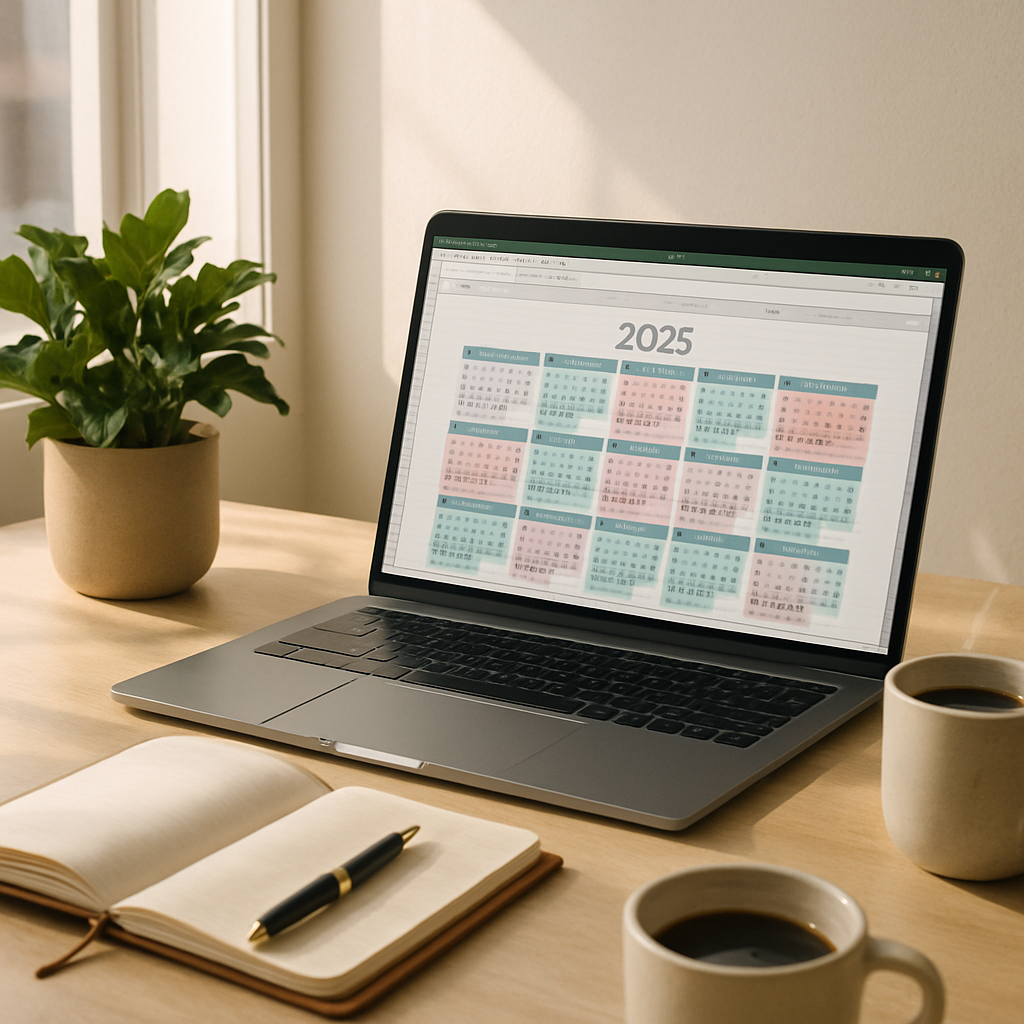
Viewing the year 2025 as an accessible and editable grid in just a few seconds is the main advantage of a calendar built on Excel. The idea is not just to lay out twelve months on a sheet: it is about creating a dynamic tool, capable of adapting to your appointments, team projects, or personal deadlines. One might think this task is tedious, but in reality, Excel offers formulas and automations powerful enough to free you from all repetitive work. In this article, we explore step by step the creation, customization, and even automation of a 2025 calendar, while keeping an eye on the most relevant tips.
Somaire
Why generate your 2025 calendar on Excel?
Between a fixed paper calendar and a dedicated application, Excel positions itself as the best compromise. You keep full control of the appearance without sacrificing the power of formulas. Whether you want to display week numbers, automatically calculate working days, or color date zones according to your projects, every aspect remains within a simple click. Excel then becomes a tailor-made platform: you control the structure, data, and styles, without ever losing readability.
Flexibility and customization
If you prefer a monthly, weekly, or even yearly view, just modify a few lines of formula. With conditional formatting, you can, for example, assign a color to each event category (meetings, holidays, deadlines). One can easily imagine a visual code where green indicates achieved goals and red highlights overdue tasks. Feel free to add logos, graphic markers, or an interactive index.
Integration with Other Tools
When your calendar fills up from data already entered elsewhere, you save a ton of time. Excel allows you to import a schedule from a CRM, a CSV file, or even Google Sheets. Even more precisely, integrating a query based on the VLOOKUP function perfectly links your calendar to client information or project dates. The result? A single file capable of synchronizing your tasks and deadlines in real time.
Steps to Generate Your 2025 Calendar
1. Prepare the Sheet and Settings
Start by creating a new sheet named “Calendar 2025.” Reserve two rows at the top for headers (month and year). Then, define a table with 7 columns by 6 rows: 7 for the days of the week (Mon, Tue…), 6 to cover all months regardless of the starting day. Using cell styles, immediately apply a thin border and centered alignment. This way, you will already have a frame set and cells ready to receive your formulas.
2. Use the DATE Formula
Column A can display the date of the first day of the month using =DATE(2025;MONTH;1). To propagate the dates, use the following formula in B2: =IFERROR(DATE(2025;COLUMN()-1;ROW()-1);””). By cleverly adjusting the references, Excel automatically fills each cell up to December 31. You just need to hide the empty cells and copy-paste the formatting onto the other months.
3. Customize the Formatting
Colors are not just for making things pretty: they structure information. With conditional formatting, define a set of rules to identify weekends, holidays, or your own milestones. For example, choose a light gray background for Saturdays and Sundays, and a thick border for the first day of each quarter. A few shades are enough to transform a raw table into a real management tool.

Advanced Tips to Enrich Your Calendar
Automation with VBA
A simple click can generate each month on the fly. Just add a small VBA script that clears the area, reruns the date formulas, and applies your default styles. Result: no more manual copy-pasting. You can even create an “Update” button placed in the ribbon, so the whole team refreshes the latest version of the schedule in an instant.
Add Dynamic Events
To link your tasks or appointments, integrate a data range dedicated to events. One “Date” column and one “Description” column are enough. By combining VLOOKUP and conditional formatting, each day is automatically annotated when an event exists. Result: your calendar becomes a living journal, able to display concerts, deadlines, or birthdays without retyping a single character.
Export and Share
Want to send a PDF version to a colleague or print it poster-size? Define a print area for each quarter, adjust the landscape or portrait orientation, and choose a fit-to-window option. In a few clicks, your 2025 calendar comes out in high resolution and keeps all its styles. To facilitate sharing, export each month as a separate PDF or compile them into a single interactive document.
Frequently Asked Questions (FAQ)
- How to display week numbers?
Add a column on the left and use =SEQUENCE to generate the numbers based on the Monday date of each week. - Can I customize the display of public holidays?
Create a list of public holidays in a separate sheet, then apply conditional formatting referenced to that range. - Does the calendar update automatically when the year changes?
With a cell dedicated to the year (e.g. B1), set =DATE(B1,1,1) and link all your formulas to this value to switch from one year to another in the blink of an eye. - Is it compatible with Excel online?
Most formulas and conditional formatting work perfectly on Excel for the web. Only VBA macros remain limited.
{
“@context”: “https://schema.org”,
“@type”: “FAQPage”,
“mainEntity”: [
{
“@type”: “Question”,
“name”: “How to display week numbers?”,
“acceptedAnswer”: {
“@type”: “Answer”,
“text”: “Add a column on the left and use the SEQUENCE function to generate numbers based on the Monday date of each week.”
}
},
{
“@type”: “Question”,
“name”: “Can I customize the display of public holidays?”,
“acceptedAnswer”: {
“@type”: “Answer”,
“text”: “Create a list of public holidays in a dedicated sheet, then apply conditional formatting referenced to that range.”
}
},
{
“@type”: “Question”,
“name”: “Does the calendar update automatically when the year changes?”,
“acceptedAnswer”: {
“@type”: “Answer”,
“text”: “With a cell dedicated to the year, link all your formulas to this value to switch from one year to another with a click.”
}
},
{
“@type”: “Question”,
“name”: “Is it compatible with Excel online?”,
“acceptedAnswer”: {
“@type”: “Answer”,
“text”: “Formulas and conditional formatting work on Excel for the web; only VBA macros remain restricted.”
}
}
]
}
{
“@context”: “https://schema.org”,
“@type”: “WebPage”,
“about”: {
“@type”: “Thing”,
“name”: “2025 Calendar on Excel”
},
“keywords”: [“2025 calendar”, “Excel”, “formulas”, “customization”, “automation”]
}
