
Toutatice is the digital workspace environment (ENT) designed to support students, teachers, and educational teams daily. Combining communication space, management of educational resources, and collaborative tools, this platform raises many questions from its users. We have compiled the 15 most frequently asked questions and detailed the answers to help you fully master Toutatice.
Somaire
In brief
😊 Quick access to your space: secure login and password reset in a few clicks, so you never lose time.
🔑 Personalized management: modify your profile, configure notifications, and organize your calendar according to your needs.
📚 Publishing and sharing: easily upload documents, join communities, and benefit from updated educational resources.
Toutatice FAQ
1. What is Toutatice?
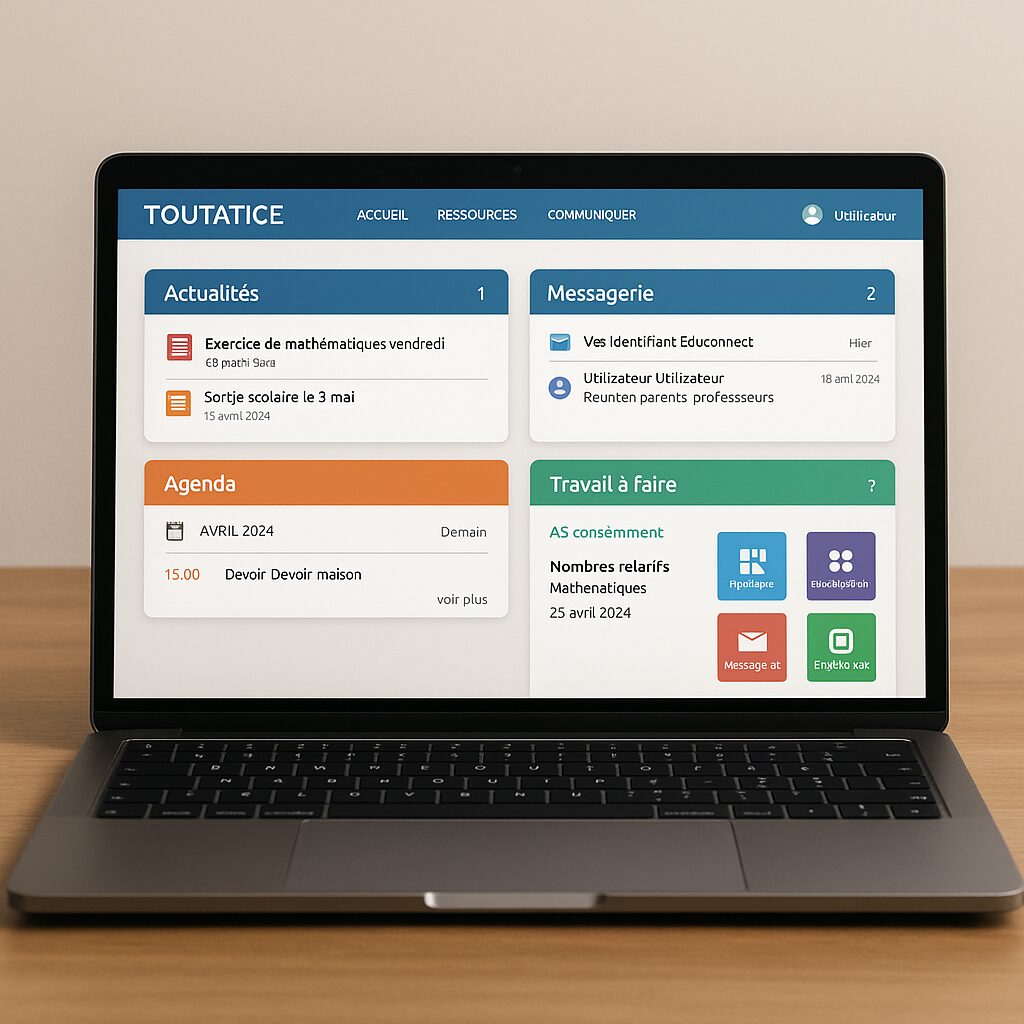
Toutatice is an ENT developed for the French educational system, bringing together a set of online tools: messaging, document sharing, course management, and collaborative modules. Its main strength lies in its ability to offer a unique space where students, teachers, and parents can interact in a secure and centralized manner.
2. How to log in to Toutatice?
To access your account, go to the dedicated authentication page, enter your username and password provided by the institution. In case of failure, check the spelling or contact your local administrator to confirm that your access is active.
3. What to do if you forget your password?
If you no longer remember your password, click on “Forgot password,” enter your username or email address, then follow the instructions received by email. A reset link will allow you to set a new secure password.
4. How to customize your profile?
In the “My profile” menu, you can change your photo, fill in your contact details, add a brief biography, and set your language preferences. This customization facilitates recognition among members and enhances the friendliness of the space.
5. How to access educational resources?
The resources are organized into thematic directories or by subject. Simply navigate to the “Resources” tab, select the desired section, and view or download the documents made available by your institution.
6. How to create or join a community?
Communities allow participants to gather around a project or a shared interest. From the “Communities” tab, choose “Create” to start your own by defining access rights, or use the “Search” function to join existing ones.
7. How to manage notifications and messaging?
Toutatice integrates a notification system at the top of the screen and an internal messaging system. To configure these alerts, go to “Settings,” then “Notifications,” where you choose the types of events to follow (new message, forum reply, document added, etc.).
8. How to upload a document?
In a community, a course, or your personal space, click on “Add a document,” drag and drop your file or browse your hard drive. You can also set reading and editing rights for each participant.
9. How to use the integrated calendar?
The Toutatice calendar allows you to schedule events, assignments, or meetings. Click on a date to create a new item, specify the time, add a description, and, if necessary, invite members of your institution.
10. How does the shared calendar work?
Several users can view the same shared calendar. To set it up, create or join a calendar, then define the access level (read-only, read/write). Colors help differentiate the types of events.
11. How to configure course modules?
Teachers have a dashboard to add activities (quizzes, assignments, forums). In a few clicks, they select the desired module, configure it (dates, constraints, grading scales), and publish the activity to the students.
12. How to track progress and evaluations?
The “Tracking” section gathers grades, feedback, and participation statistics. You will find a report by module, which helps identify strengths and areas for improvement for each learner or the entire group.
13. What to do in case of a technical problem?
First, check your Internet connection and refresh the page. If the issue persists, clear your browser cache or try another browser. As a last resort, contact your academy’s technical support.
14. How to contact support?
All institutions provide a support contact point. You will find the email address or phone number in the “Help” section or on your academy’s intranet site. Always specify your username and the nature of the problem.
15. How to log out properly?
To ensure the security of your data, click on your name at the top right, then on “Logout.” This ends your session and prevents any unauthorized access to your personal space.
