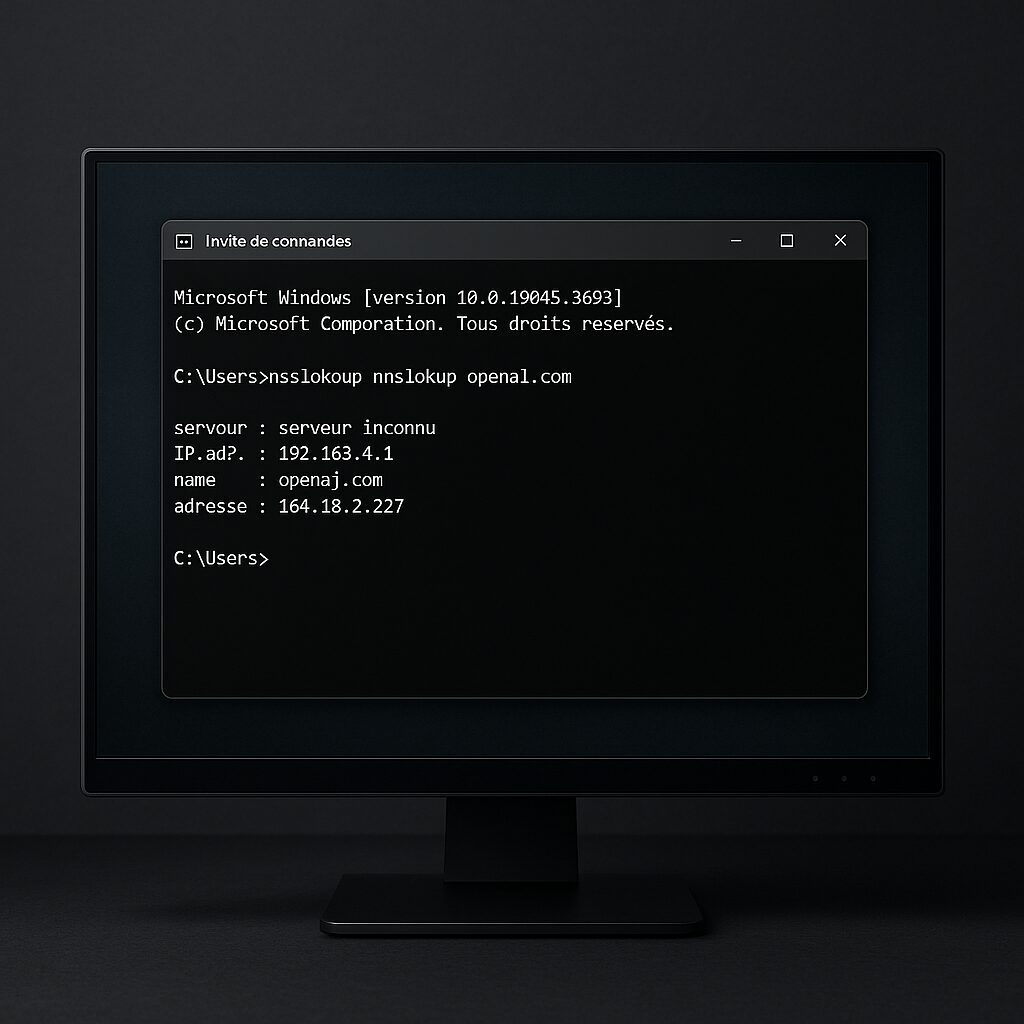
On Windows 10 or 11, encountering a “DNS Server Not Responding” message is like hitting an invisible wall: the browser refuses to translate domain names into IP addresses. Without this correspondence, neither websites nor online services will load. The challenge is to quickly diagnose the cause, then apply the right method(s) to restore a reliable connection.
🚀 In just a few moments, check the DNS status with the nslookup command to identify a local or remote outage.
🧹 Clearing the DNS cache (ipconfig /flushdns) and restarting network services often suffices to resolve a resolution conflict.
🔄 If the issue persists, change your DNS: try Google’s addresses (8.8.8.8 / 8.8.4.4) or Cloudflare’s (1.1.1.1).
🛡️ To prevent issues, keep your network drivers up to date and limit prolonged use of problematic proxies or extensions (errors like ERR_CONNECTION_RESET).
Somaire
What is a DNS server and why might it not respond?
The DNS (Domain Name System) acts as the global directory of the Internet. When you type www.example.com, your system queries a DNS server to get the corresponding IP address (for example 93.184.216.34). Without this step, the browser remains stuck on translating the name.
How DNS resolution works
In practice, Windows 10/11 first queries the local cache, then asks your router or a public DNS. Each request triggers a series of checkpoints: the cache, the primary server, the secondary server, even the root servers. If any of these links is out of service or misconfigured, the entire process stalls.
Common causes of no response
- Corrupted DNS cache after many accesses
- Network settings accidentally changed (proxy, VPN, or static IP)
- Driver or Windows DNS Client service problem
- Failure of your ISP’s DNS server
- Blocked by a firewall or browser extension
How to check if the DNS server is not responding?
Before diving into settings, it is essential to determine if the outage is really from the DNS and not from the cable, Wi-Fi, or browser.
Using the nslookup command
Open the command prompt (Win + R, type cmd) and enter:
nslookup www.google.com
If you get an error message like “Default Server: UnKnown” or “Request timed out,” it’s the DNS that is failing, not the pure connectivity. On the other hand, a response like “Address: 142.250.185.4” confirms that the name was successfully resolved.
Testing with ping and tracert
ping informs you about latency, while tracert (trace route) reveals where the connection stops:
ping 8.8.8.8
tracert www.example.com
If the ping to a known DNS (8.8.8.8) succeeds, but the tracert to a domain name fails, the fault again points to a faulty DNS resolution.
Solutions to fix the “DNS Server Not Responding” error
Restart network services
Several Windows services handle connectivity. Restarting them may be enough:
net stop dnscache && net start dnscache
This operation resets the “DNS Client” service which can, in case of a bug, refuse any transaction until manually restarted.
Clear the DNS cache
The cache accumulates references, sometimes corrupted. To clear it:
ipconfig /flushdns
A message “Successfully flushed the DNS Resolver Cache” signals a successful action. Then refresh your browser to test.
Change the DNS server
If your internet provider has an unstable DNS, switch to public alternatives. In Network Settings:
| Provider | Primary DNS | Secondary DNS |
|---|---|---|
| 8.8.8.8 | 8.8.4.4 | |
| Cloudflare | 1.1.1.1 | 1.0.0.1 |
| OpenDNS | 208.67.222.222 | 208.67.220.220 |
After modification, don’t forget to restart ipconfig /flushdns to enforce the change.
Update drivers and firmware
Obsolete network cards or outdated router firmware can cause packet loss and DNS timeouts. Check the manufacturer’s website for the latest version available, then install it.
Check proxy and extension settings
A misconfigured proxy or a browser extension can block certain DNS calls. Temporarily disable any proxy (Settings > Network & Internet > Proxy) and test in private browsing mode.
For Chrome, if you have already seen the error ERR_CONNECTION_RESET, this may indicate a conflict between DNS and a network plugin. Remove suspicious extensions or reset the browser.
Prevent DNS problems in the future
Acting upstream limits recurring failures:
- Schedule automatic updates of network drivers.
- Occasionally enable automatic DNS cache clearing via a scheduled task.
- Monitor alerts from your internet provider to anticipate DNS maintenance.
- In professional environments, deploy an internal secondary DNS as backup.
FAQ
Why does my DNS work on my smartphone but not on Windows?
Each device uses its own DNS servers or cache. Your smartphone may automatically switch to a public DNS while Windows remains configured to the router’s DNS, potentially faulty.
What to do if no solution fixes the problem?
Test on another machine or via a Linux live USB to check if the issue is hardware or software. If the external DNS remains unreachable, contact your ISP to report a network outage.
Can antivirus or malware block DNS?
Yes. Some antiviruses intercept DNS requests to filter traffic, and some malware redirect DNS to malicious servers. Scan your PC with a reliable tool and temporarily disable network protection to test.
What is the difference between local DNS cache and router cache?
The local cache stores recent responses on your PC, while the router keeps a shared history for all connected devices. Both caches can become outdated or corrupted.