
| Key Points | Details to Remember |
|---|---|
| 📊 Definition | Merge two chart types into a single display to compare data series. |
| 🔄 Usefulness | Compare values of different nature or scale without diverting attention. |
| 📐 Preparation | Organize your data in separate columns for each series and include a time reference column. |
| 🛠️ Creation | Insert a combined chart via the Insert tab and choose the Secondary Axis option. |
| 🌟 Customization | Modify chart types, colors, and scales to highlight key information. |
| 🎯 Tips | Optimize readability by adjusting the style of plots and the position of labels. |
Effectively combining multiple data series into a single chart may seem like an art when values evolve at different scales. Yet, by adjusting a secondary axis in Excel, you can juxtapose a rate curve with volume bars without confusing the reading. This guide details each step, from setting up the data to the aesthetic finishing, so you can produce a clear, professional visual adapted to your reports.
Somaire
Why choose a combined chart with a secondary axis?
Placing side by side two types of representations (bars and lines, for example) often responds to a need for visual relevance. Imagine you are tracking monthly sales of a product as well as your conversion rate. Volumes, measured in units sold, can reach several thousands while the rate, expressed as a percentage, oscillates between 0 and 100%. Without a separate axis, the conversion curve would be crushed by the volume bars, losing all readability.
Moreover, similar needs are sometimes observed in very varied contexts: visualizing trends with mini-charts (sparklines), analyzing cash flows on a waterfall chart, or reading schedules on a Gantt diagram. In each of these cases, using multiple axes avoids sacrificing information in favor of a single scale.
Prepare your data before creating the chart
The robustness of the result often stems from the clarity of your source sheet. First of all:
- Structure the columns: A for the period or category, B for the first series (bars), and C for the second series (line).
- Check the formats: dates, percentages, or numbers must be correctly set.
- Remove empty or merged cells that could cause the automatic insertion to fail.
Once your data is ready, Excel will easily identify the ranges and you can proceed to insertion.
Steps to insert a combined chart with a secondary axis
1. Select the data
You can simply click and drag over all the relevant cells, or click in a cell then press Ctrl + A to select the entire block. The important thing is that the selection covers both the bar series and the line series.
2. Insert a combined chart
In the Insert tab, choose Recommended Charts, then in the All Charts tab, click on Combo. Excel will display a preview for each combination option.
3. Set a secondary axis
For the series that requires a different scale, check the Secondary Axis box. You will then see a second vertical axis appear on the right side of the chart with its own graduations.
4. Adjust the chart types
By default, Excel may draw two lines or two histograms. For more impact, for example, transform the first series into a histogram and the second into a line. Select the series to modify, right-click, then Change Chart Type and choose the appropriate form.
5. Refine the formatting
Once the skeleton is in place, focus on the presentation:
- Rename the axis titles and add a clear title to the chart.
- Change the colors to clearly differentiate bars and lines.
- Add data labels if you want direct reading.
- Reduce the style of gridlines so as not to distract the eye.

Tips to optimize readability
Beyond basic settings, some details make all the difference:
- Play with the transparency of the bars when the line values cross multiple bars.
- Limit the number of data points on the screen, or segment the information via filters.
- Use contrasting label styles or place them inside the bars to avoid overlap.
- Consider colorblind users: avoid palettes that are too similar.
Concrete example: monthly sales and conversion rate
Imagine a tracking table over six months. In column A, the months; in B, the number of units sold; in C, the conversion rate.
| Month | Sales | Conversion Rate |
|---|---|---|
| January | 3,200 | 4.5 % |
| February | 2,800 | 5.1 % |
| March | 3,600 | 4.8 % |
| April | 4,000 | 5.3 % |
| May | 3,900 | 5.0 % |
| June | 4,200 | 5.6 % |
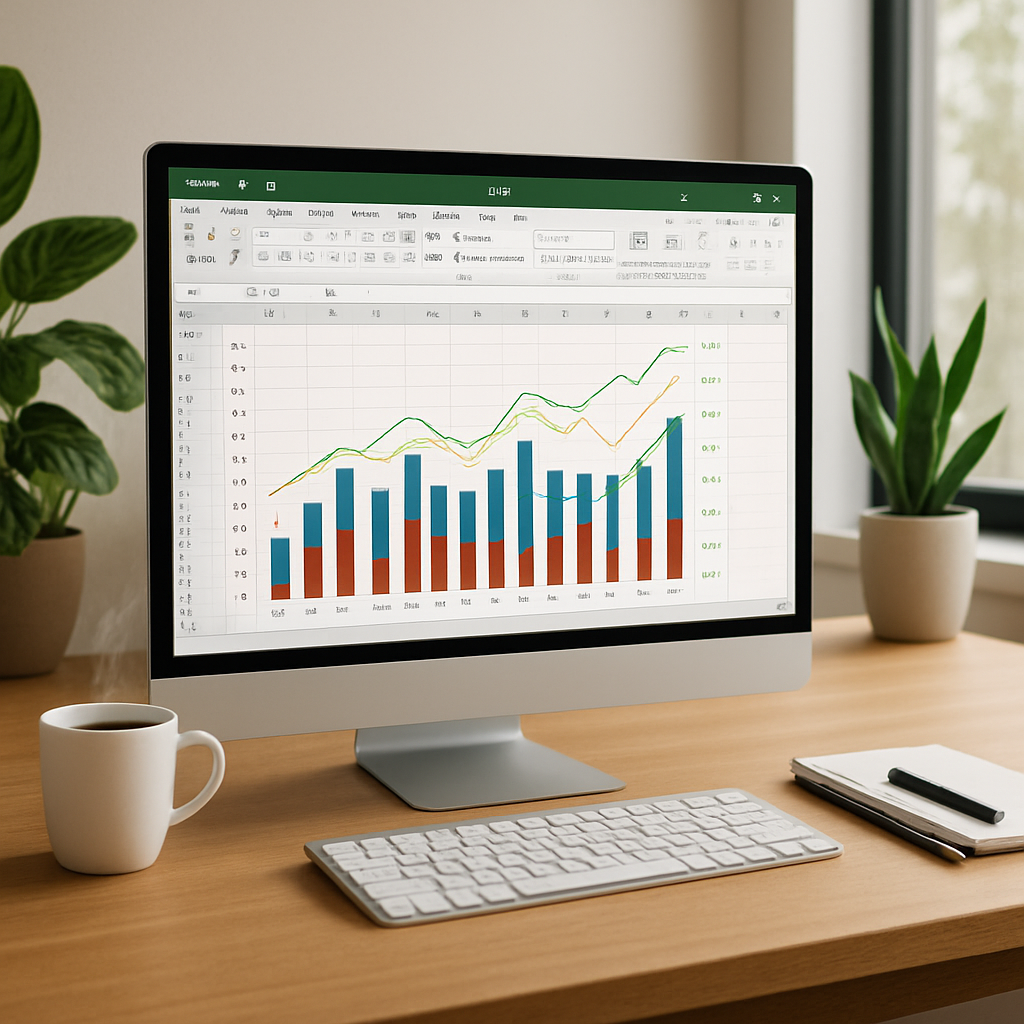
The resulting chart will display colored bars for volumes and a sleek line for the percentage. This way, you will obtain a visual that highlights the potential correlation between the number of sales and the overall effectiveness of your campaigns.

FAQ
- Can more than two series with secondary axes be added?
Yes, in principle Excel only allows one secondary axis, but you can simulate a third axis through manual formatting or by combining two overlaid charts. - How to put a series back on the primary axis?
Click on the series, then uncheck the Secondary Axis box in the chart options. - The chart does not adjust when I add data?
Check your data range: an Excel table (Insert > Table) can automate the extension. - Can this type of chart be animated for a presentation?
PowerPoint offers animation options for imported charts, but it is often easier to prepare an animated GIF or a short video from Excel.
