

Suddenly appearing, the message “ERR_CONNECTION_RESET” in Google Chrome indicates a break in communication between your browser and the server. In some cases, this interruption stems from a simple local issue: a misconfigured proxy or a corrupted cache. Sometimes, the problem is more subtle, related to inappropriate DNS settings or an overly restrictive firewall. Before panicking and spending hours looking for a complex solution, it is useful to understand the underlying mechanisms and test a few quick fixes. This article deciphers the causes of this error and offers step-by-step methods to restore a stable connection.
🔍 Network origin: “ERR_CONNECTION_RESET” means the connection was abruptly interrupted before data exchange. Causes range from a misconfigured proxy to an inappropriate DNS.
🛠️ Key steps: 1) Check your internet connection, 2) Disable any VPN or proxy, 3) Clear Chrome’s cache, 4) Adjust DNS servers.
⚙️ Recommended tools: network commands (ping, tracert, ipconfig), Windows built-in diagnostics, and third-party utilities.
Somaire
Why does this error appear?
In practice, Chrome interrupts the exchange of TCP packets when it receives a reset (RST) from the server or intermediate router. It is a clear signal: “the connection will not continue.” One might think it is always a browser problem, but it is often an external component (a network appliance, firewall, proxy) that decides to terminate the session. Understanding this dynamic is essential to precisely target the origin of the reset and avoid blind fixes.
Technical explanation
When Chrome sends an HTTP request, the remote server first responds with an ACK. If an intermediate device (router, application firewall) deems the exchange suspicious or misconfigured, it sends a TCP RST packet. The browser then translates this signal into ERR_CONNECTION_RESET, which amounts to abandoning the connection. This behavior strictly follows TCP/IP protocol standards.
Common factors
- Misconfigured Proxy/VPN: unwanted redirection or missing authentication.
- Enterprise or router firewall blocking certain ports.
- Outdated DNS cache or unreliable DNS server.
- Interfering Chrome plugins or high privacy settings.
Solutions to fix ERR_CONNECTION_RESET
Before moving on to advanced manipulations, always start with basic checks. These first steps often resolve the problem within minutes.
Check your internet connection
Open another site in Chrome or switch browsers. If the page loads, the cause of the reset is probably internal to Chrome. However, if the test also fails, switch to another connection (Wi-Fi, mobile network) or restart your box/modem. This simple step prevents digging into solutions on your device when the problem is more global.
Disable the proxy or VPN
Transparent proxies or VPN clients can cause a ERR_CONNECTION_RESET when they do not respond properly to the request. To disable a proxy:
- Open the Network Settings in Windows.
- In Proxy, make sure the option “Use a proxy server” is disabled.
If you are using a VPN, temporarily disconnect to test the direct connection without encryption or redirection.
Change DNS settings
Switching to public DNS servers, such as Google’s (8.8.8.8 and 8.8.4.4) or Cloudflare’s (1.1.1.1), eliminates incorrect resolutions. On Windows, simply:
- Open the command prompt as administrator.
- Run
netsh interface ip set dns name="Local Area Connection" static 8.8.8.8.
Then, clear the DNS cache with ipconfig /flushdns and restart Chrome.
Clear the browser cache
Corrupted files can disrupt SSL/TLS negotiation, triggering a ERR_CONNECTION_RESET. To clear the cache:
- Go to menu > More tools > Clear browsing data.
- Choose “All time” as the period and check “Cached images and files”.
Restarting Chrome after this operation is strongly recommended.
Reset Chrome settings
As a last resort, resetting settings restores the original configuration: search engines, pinned tabs, extensions, and cookies are disabled. To access it:
- Settings > Reset and clean up > Restore settings to their original defaults.
- Confirm and let Chrome restart.
Essential data (bookmarks, synced passwords) remain preserved if synchronization is enabled.
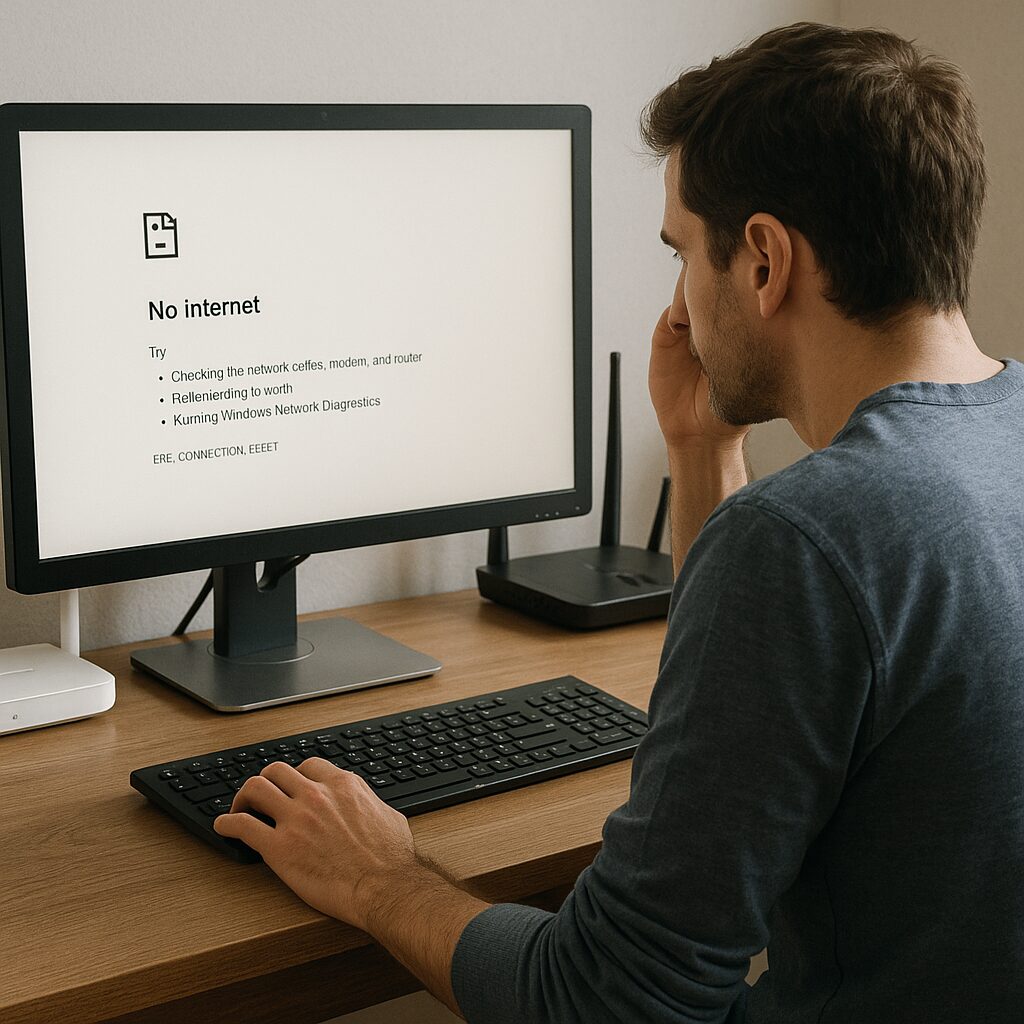
Useful network tools and commands
Beyond Chrome, some system utilities quickly shed light on the nature of the blockage. These basic commands require no additional installation.
| Command | Usage | Interpretation |
|---|---|---|
| ping | ping example.com | Checks the latency and availability of the server |
| tracert | tracert example.com | Identifies each hop between you and the server |
| ipconfig | ipconfig /all | Displays IP configuration and DNS servers |
Prevent the error in the future
Beyond one-time fixes, it is preferable to establish some good practices:
- Update Chrome and its extensions as soon as a security alert appears.
- Choose a reliable and secure DNS capable of filtering threats.
- Limit non-essential proxies or VPNs, especially those not maintained.
- Regularly monitor the logs of your home or professional firewall.
These habits significantly reduce the likelihood of encountering ERR_CONNECTION_RESET again.
FAQ
Why does Chrome work on another device?
Each workstation has its own cache, proxy settings, and DNS. If the error is limited to a single device, the malfunction most likely comes from its local configuration.
Can an antivirus be responsible?
Some suites include an HTTPS filter that inspects certificates. If this filter is faulty, Chrome receives a reset. Test by temporarily disabling web scanning.
What to do if the problem persists after all these steps?
As a last resort, check your internet box and its firewall rules. Contact your access provider to verify that no restrictions are applied to your line.
{
“@context”: “https://schema.org”,
“@type”: “Article”,
“headline”: “Google Chrome displays “ERR_CONNECTION_RESET”: causes and solutions”,
“description”: “Learn to identify and fix the ERR_CONNECTION_RESET error in Chrome through network diagnostics, DNS adjustments, VPN deactivation, and browser reset.”,
“keywords”: [“ERR_CONNECTION_RESET”, “Google Chrome”, “resolution”, “DNS”, “proxy”],
“mainEntity”: {
“@type”: “FAQPage”,
“mainEntity”: [
{
“@type”: “Question”,
“name”: “Why does Chrome work on another device?”,
“acceptedAnswer”: {
“@type”: “Answer”,
“text”: “Each workstation has its own cache, proxy settings, and DNS. If the error is limited to a single device, the malfunction most likely comes from its local configuration.”
}
},
{
“@type”: “Question”,
“name”: “Can an antivirus be responsible?”,
“acceptedAnswer”: {
“@type”: “Answer”,
“text”: “Some suites include an HTTPS filter that inspects certificates. If this filter is faulty, Chrome receives a reset. Test by temporarily disabling web scanning.”
}
},
{
“@type”: “Question”,
“name”: “What to do if the problem persists after all these steps?”,
“acceptedAnswer”: {
“@type”: “Answer”,
“text”: “As a last resort, check your internet box and its firewall rules. Contact your access provider to verify that no restrictions are applied to your line.”
}
}
]
}
}
