

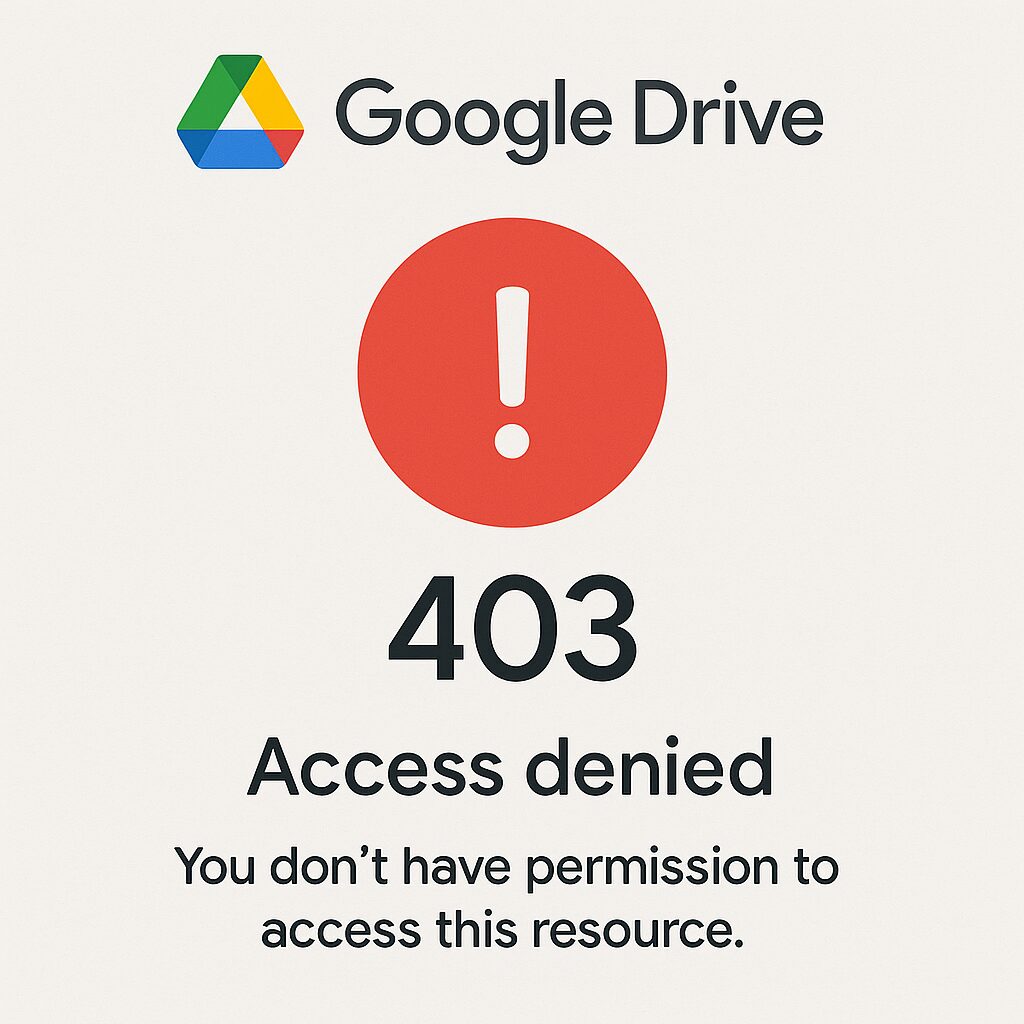
When faced with a « Error 403 » on Google Drive, one often feels helpless. This HTTP code indicates that access is denied, but the cause can vary: expired session, misconfigured permissions, or exceeded quota. Before panicking and wasting hours, this guide offers a comprehensive overview to understand the origin of the blockage, test simple solutions, and then move towards more technical steps. The key: your documents regain their freedom.
🙂 403 means “forbidden”: your browser contacted the server, but authorization is not granted.
🔍 First check connection and permissions: are you properly logged in? Does the document sharing include your account?
⚙️ Cache, cookies, and expired tokens are often the cause: targeted deletion is sometimes enough to remove the blockage.
💡 In case of access via a professional account, company policies or API quotas may generate this refusal: contact the admin or Google Workspace if necessary.
Somaire
Understanding the 403 Error on Google Drive
The 403 error would literally translate as “Forbidden” via the HTTP protocol. Unlike a 404 code which indicates a resource not found, here the server has indeed located your file, but refuses to give it to you. This subtlety may seem technical, yet it immediately points to an access or rights problem rather than a deleted or moved file.
The return of a 403 code also acts as a means of protection: Google Drive limits unauthorized access to preserve data integrity and prevent leaks. Understanding this logic is already the first step to restoring smooth access.
Possible Origins
- Sharing permissions poorly defined: the owner did not include your address.
- Authentication token expired or corrupted (OAuth).
- API quota reached for scripts or third-party applications.
- Company policies (Google Workspace) blocking certain flows.
Initial Diagnosis
Before any complex manipulation, gather some clues:
- Does the full error message display on desktop and mobile?
- Does restarting in private browsing mode make the error disappear?
- Does the same link work with another account or another network?
These simple checks immediately eliminate cookie or local network problems, making the source of the blockage clearer.
Quick Solutions to Restore Access
Check Your Connection and Account
If your Google session has expired or if you have switched to a secondary account, Google Drive will return a 403. Often, simply clicking on your avatar at the top right, logging out, and then logging back in with the correct account is enough. This action immediately restores the access tokens.
Tip: for multi-account environments, prefer a dedicated browser profile or an incognito window.
Clear Cache and Cookies
A corrupted cookie can block OAuth authentication. Here is the quick procedure to follow:
- Open your browser settings.
- Search for browsing history then Clear cookies and site data.
- Restart the browser and try accessing again.
Keep in mind that this action also logs you out of other sites. You can target only data related to Google to minimize the impact.
Contact the Administrator or Check Permissions
In a professional setting, a Google Workspace administrator may restrict access to certain services or folders. If you have transferred a document generated by a script or a form, it may also be that the external origin requires manual rights adjustment. Request a direct share or a link set to “View” or “Edit”.
Advanced Approaches and Best Practices
Use Private Browsing Mode or Another Browser
To rule out any proxy, extension, or internal filter, switch to private browsing or use an alternative browser. In a few clicks, you will know if the problem is local or global.
Modify Sharing Permissions or Copy the File
If the owner denies access, a workaround is to duplicate the document: open it via another account (with access), then use File → Make a copy. You will then have a completely independent document, for which you will be the new owner of the permissions.
Contact Google Support
For paid accounts (Google Workspace or Google One), official support remains the best option. Have a screenshot of the exact message ready and include information about your network and browser. The technical team can quickly identify if an API quota or a security alert is the cause.
Preventing the 403 Error in the Future
A good habit is to regularly monitor API quotas if you use automated scripts or third-party applications. In Google Cloud settings, you can view your consumption in real time.
Also, always assign the minimum necessary rights to each collaborator or application. A “least privilege” policy avoids granting overly broad access, reducing the risk of a 403 error while enhancing security.
FAQ
Why do I receive the 403 error on Google Drive?
Essentially, because your account or application does not have the required rights to view the resource. This can be due to a misconfigured permission, an expired token, or a company policy.
How can I tell if the error comes from my browser or from Google?
Test access in private browsing mode or via another browser. If the problem persists, it is likely a server-side block (permissions, quotas, policies).
Can I recover my files if access is permanently closed?
If you are the owner of the file, go through the Google Workspace administration interface or contact support. In the worst case, ask a collaborator with access to export and share a copy.
Is it possible to automate this type of error to alert a team?
Absolutely: via the Google Drive API, you can schedule regular requests and trigger an alert as soon as a 403 response is returned. This proactive approach allows for quickly correcting permissions or quotas.
