
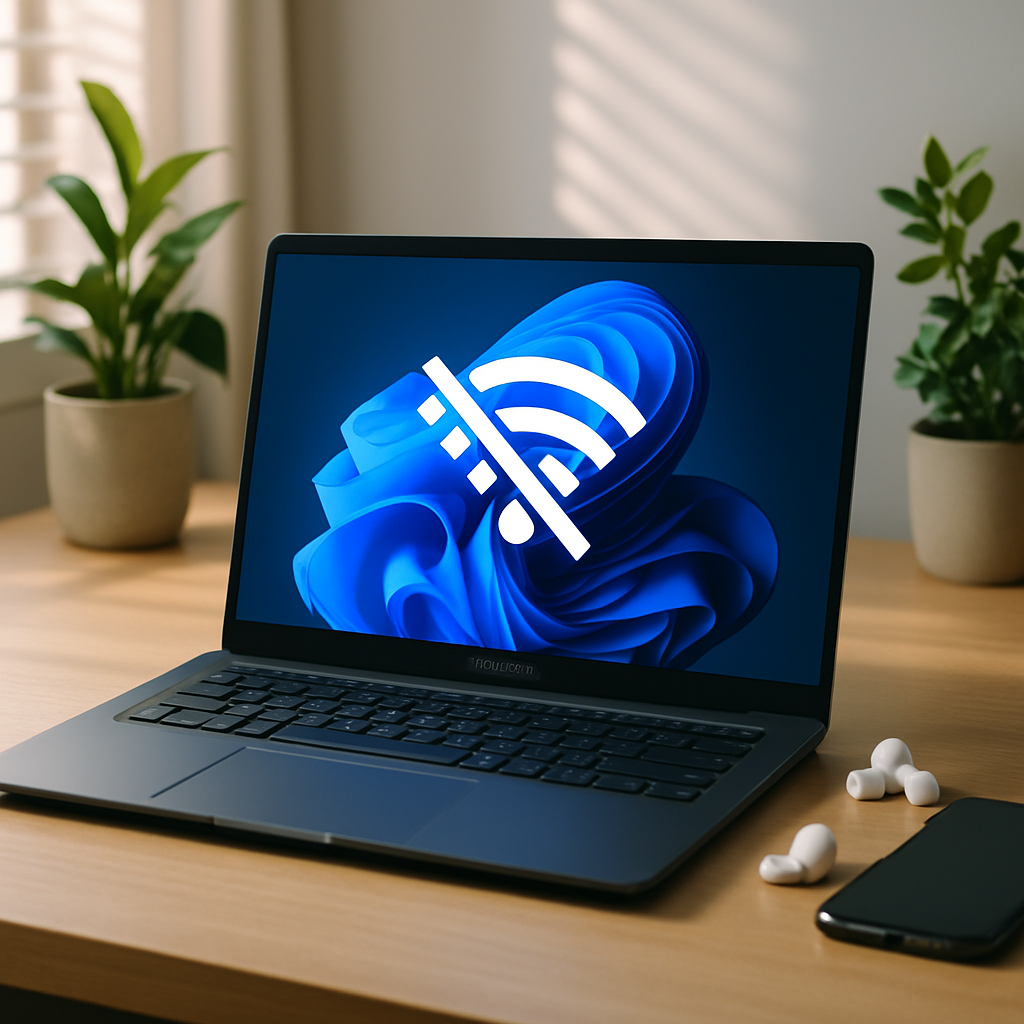
On an Asus laptop equipped with Windows 11, the magic of wireless can suddenly turn into frustration: the WiFi icon disappears, and connecting becomes impossible. Between outdated drivers, finicky system settings, and hardware interference, this “no networks available” screen often hides several truths. This practical guide explores every avenue to help you regain stable WiFi access, without unnecessary jargon and with clear steps.
📶 Outdated or incompatible driver remains the most common cause on Asus devices: be sure to check the version via Device Manager.
🔌 A disabled hardware button, a poorly toggled airplane mode, or a loosely connected internal antenna can abruptly cut off all signals: a quick physical check can prevent many issues.
⚙️ Windows 11 sometimes applies power restrictions by default that turn off the network card to save battery; adjusting these settings often suffices to restore the connection.
🛠️ If the problem persists, network commands (netsh, ipconfig) and a full reset offer a software “reset” often decisive before considering hardware replacement.
Somaire
Why Your Asus PC No Longer Detects WiFi
Before diving into the procedures, understanding the possible origins helps target the intervention. Three main areas are to be explored: software (driver), Windows settings, then hardware aspects.
Network drivers that stall
An outdated or improperly installed driver literally makes Windows “forget” how to communicate with the wireless card. Asus regularly publishes updates on its site, but Windows Update may miss versions specific to your TUF or ZenBook model.
Power and network management settings
Windows 11 now offers ultra-optimized power plans. Unfortunately, in “Power Saver” mode, the WiFi card can be automatically disabled to save battery. These settings, often invisible during initial setup, play a crucial role.
Interference and hardware failures
Beyond software, the internal antenna physically connecting the WiFi card to the laptop’s casing can become disconnected after a fall or shock. Not to mention interference from other frequencies (Bluetooth, microwaves) that disrupt the signal on the 2.4 GHz band.
Step-by-step diagnostic steps
1. Check the hardware button and airplane mode
- On some Asus models, a physical switch or an Fn+F2 combination controls the WiFi. An accidental press can mute the chip.
- A click on the “Airplane” icon in the taskbar ensures that airplane mode is indeed disabled.
2. Examine the driver status in Device Manager
Open Device Manager (type devmgmt.msc in Run). Under “Network adapters,” locate your Asus or Intel WiFi adapter. A yellow triangle indicates a malfunction. Right-click → “Update driver,” then “Search automatically” or download the official version from the Asus website.
3. Adjust power settings
In the Control Panel → “Power Options” → “Change plan settings,” click on “Change advanced power settings.” Expand “Wireless adapter settings” and set the mode to Maximum Performance both on AC power and battery.
Advanced solutions for Windows 11
Reset network configuration
When nothing works, a full reset of the TCP/IP stack and DNS cache can restart network communication. Launch the Command Prompt as administrator:
netsh winsock reset
netsh int ip reset
ipconfig /release
ipconfig /renew
ipconfig /flushdns
Then restart the computer to apply these changes.
Check for DNS-related conflicts
Sometimes, the absence of WiFi detection is accompanied by persistent DNS errors. If you have already encountered a DNS Server not responding Windows 10/11 issue, the symptom is similar: even if the network is visible, address resolution is impossible. Manually choosing public DNS servers (8.8.8.8, 1.1.1.1) in the IPv4 properties can lift the blockage.
When hardware intervention is necessary
If the internal antenna is defective or poorly connected, WiFi access remains sporadic or nonexistent even after all these steps. In this case:
- Open the bottom cover (beware of the warranty) and check the antenna cable connections on the network card.
- Test with a USB WiFi adapter to confirm that the internal module is the cause.
- As a last resort, replace the internal network card with a compatible M.2 or mini PCI-E model.
FAQ
How to reset network configuration on Windows 11?
Use the Command Prompt as administrator and run successively netsh winsock reset, netsh int ip reset, then ipconfig /flushdns, before restarting.
Where to find WiFi drivers for an Asus PC?
The official Asus website, “Support” section, offers an automatic model detection system. You can also retrieve the latest versions from the chip manufacturer (Intel, Realtek).
Why does my WiFi come back after reboot but then disappear again?
This suggests a software conflict or a power setting. Check the power plan, disable automatic wireless card shutdown, and ensure Windows Update is not reinstalling an old driver.
Is a USB WiFi adapter a good alternative?
Yes, if it becomes necessary to validate an internal hardware problem. Modern USB WiFi keys (WiFi 6) are compact, inexpensive, and effective.
In Brief
🧩 Understanding the source (driver, Windows setting, or hardware) remains the first step to unlock an invisible WiFi on an Asus running Windows 11.
🔄 Resetting the network stack with netsh and ipconfig often proves lifesaving when the usual tools are no longer sufficient.
🔧 Checking the internal antenna — connection, cable condition — before replacing the card saves you unnecessary expenses.
⚡ Consider the USB adapter to isolate the problem or quickly get back online without opening the case.
