
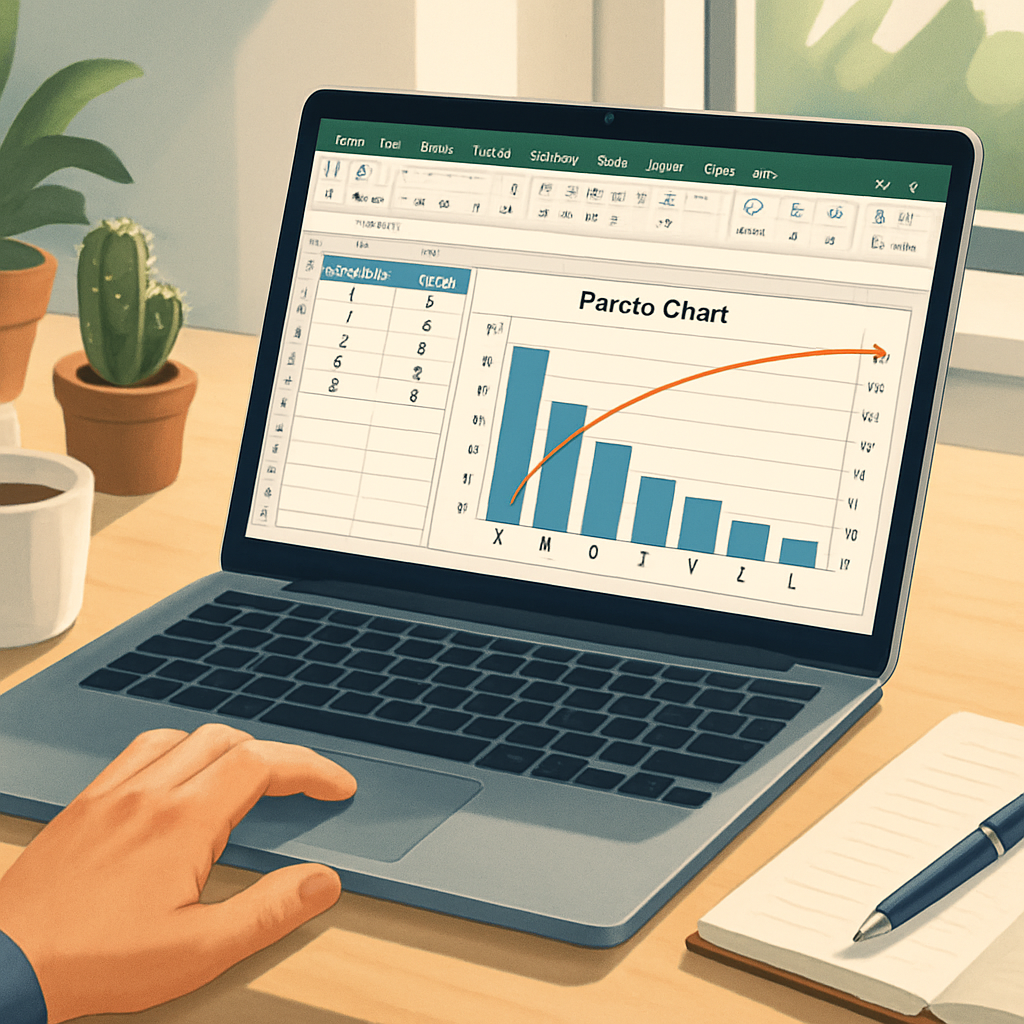
| Key Points | Details to Remember |
|---|---|
| 📊 Definition | A Pareto chart highlights the relative importance of categories. |
| 🎯 Objective | Prioritize the main causes according to the 80/20 principle. |
| 📋 Required Data | Raw values and calculation of cumulative percentages. |
| 🚀 Key Steps | Selection, inserting a combo chart, and adjusting axes. |
| 🔍 Interpretation | Identify the group representing 80% of the total. |
| 💡 Tips | Customize colors and labels for better readability. |
The Pareto chart proves ideal for visually prioritizing the causes or elements that concentrate the bulk of a given effect: a principle centered around the famous 80/20 rule. Rather than a simple histogram, this chart combines bars and a cumulative curve, which sometimes raises questions about implementation in Excel. No worries: we will break down each step, specify the required calculations, and detail tips to achieve a clear and impactful display.
Somaire
What is a Pareto Chart?
One might think it is just an enhanced histogram, but the Pareto has the particularity of linking each bar to a cumulative percentage represented as a line. The idea is to quickly identify the few categories that generate the majority of the analyzed effects.
Origin and the 80/20 Principle
Vilfredo Pareto, an Italian economist, noticed at the end of the 19th century that 20% of the owners held 80% of the land. This imbalance quickly generalized to other fields: sales, defects, time-consuming tasks. In a Pareto chart, categories are first displayed in descending order, then the cumulative percentage curve is drawn to visualize the threshold where 80% of the whole is surpassed.

Why Use a Pareto Chart?
More than just an aesthetic form, this chart guides decision-making. The “vital few” (the essential causes) are immediately spotted on the left side of the chart, and the “trivial many” form the long tail. It saves time by targeting improvement or control efforts.
Prioritize Problems
When you have a list of discrepancies, customer feedback, or defects, raw prioritization (by number or cost) can be counterproductive. Pareto combines two dimensions: frequency and cumulative weight. Concretely, a frequent defect with low cost will not appear as critical as a less frequent but very costly problem.
Preparing Data in Excel
The success of a Pareto depends on the quality of your source table. You need both the raw value and the calculation of percentages, then their cumulative addition.
Structuring Your Data
In a dedicated sheet, list your categories (column A) and their values (column B). Sort these rows in descending order from the start. This avoids sorting afterwards and ensures that the cumulative curve will follow the desired order.
Example Table
| Category | Value | % | Cumulative % |
|---|---|---|---|
| Defect A | 150 | 37.5 % | 37.5 % |
| Defect B | 90 | 22.5 % | 60 % |
| Defect C | 60 | 15 % | 75 % |
| Defect D | 40 | 10 % | 85 % |
| Defect E | 30 | 7.5 % | 92.5 % |
| Others | 30 | 7.5 % | 100 % |
Calculating Cumulative Percentages
- Column C (%): =Value/SUM(B:B)
- Column D (Cumulative %): =C2, then D3=C3+D2 and so on
The percentages rely on SUM to ensure the total reaches exactly 100%. The formulas are simple, but you should check the display in percentages with two decimals for more accuracy.
Building the Chart in Excel
Now that your numbers are ready, you will combine bars and line. Excel does not have a native “Pareto” option in all versions, so we mix two chart types.
Select Your Data
Select the Value and Cumulative % columns (B and D). Hold Ctrl and include the category names (A).
Insert a Combined Chart with Secondary Axes
In the Insert tab, choose “Combo Chart.” In the dialog box, assign the value series to the Histogram type and the cumulative percentage series to a line chart. Check “Secondary Axis” for the line. This way, you get your Pareto.
If you have already explored creating a combined chart with secondary axes in Excel, the procedure will seem familiar, but here the goal is clearly the 80/20 analysis and not the comparison of two similar series.
Adjust the Secondary Axis
Double-click on the percentage axis on the right. Set the limits min = 0%, max = 100%. If Excel rounds to 110% by default, correct it manually. You want the curve to start at 0 and end exactly at 100.

Customization and Optimization
To ensure your Pareto is not just a simple assembly of shapes, take care of readability and aesthetics. Decision-makers need to grasp the information at a glance.
Refine the Appearance
- Define a coherent palette: the same color for all bars or a gradient to highlight the first categories.
- Thickness and color of the line: a thin but contrasting line remains ideal.
- Remove unnecessary gridlines and hide non-essential axes.
Add Labels and Styles
Enable the “Add Data Labels” option. On the cumulative percentage series, display the percentages directly on the line. You can also move each label to avoid overlap.
Best Practices and Advanced Tips
Automatic updating of the Pareto chart as soon as your data changes is often crucial. A frozen chart will have only limited usefulness in the long term.
- Named ranges: define a dynamic name via Name Manager to include new rows without manually adjusting the selection.
- Use XLOOKUP to extract precise values from an external source table, if necessary.
- Integration of sparkline charts as a complement, to track the trend of a category over a period.
FAQ
What types of data are suitable for Pareto?
Any data set where it is relevant to rank items by order of importance. Defects, sales, time spent on tasks… You just need a quantitative measure per category.
How to add a title on the secondary axis?
Select the secondary axis, then in the Layout tab, click on Axis Title and choose Vertical Title. You can enter “Cumulative Percentage” and position the label.
Can the chart be dynamically updated?
Yes, by using a structured table (Insert > Table). Any added row automatically enters the data range and the Pareto will refresh as soon as you press F9 or add a data point.
What is the difference between Pareto and histogram?
A histogram only displays frequency or quantity. The Pareto combines this information with a cumulative curve, which adds an analytical dimension to identify the 80% threshold.
How to export the chart as an image?
Right-click on the chart, choose Copy as Picture, then paste into Paint, Word or any other graphics software before saving it in PNG or JPEG format.
