
Somaire
Why freeze panes?
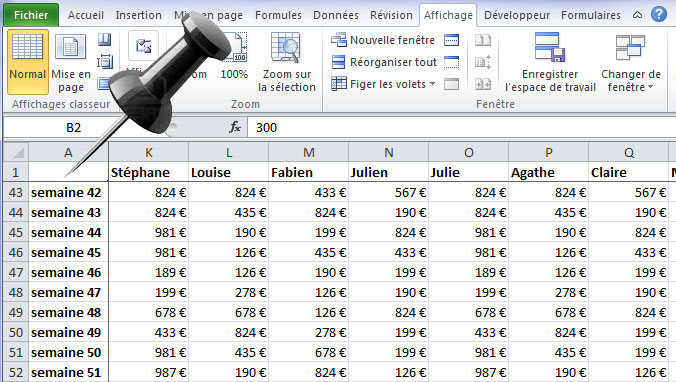
In large tables, you quickly lose sight of the headers (rows 1–2) or the label column (A). The Freeze Panes command “pins” reference points while you scroll through the rest of the sheet, which improves readability, limits interpretation errors, and speeds up analysis.
Windows: all methods
Freeze header row only
- Tab View → Freeze Panes → Freeze Top Row.
- Scroll: row 1 remains visible.
Freeze first column only
- Tab View → Freeze Panes → Freeze First Column.
- Scroll horizontally: column A remains visible.
Freeze multiple rows/columns (mixed area)
- Select the cell located immediately below the last row and immediately to the right of the last column you want to freeze (e.g. to freeze rows 1-2 and columns A-B ⇒ select
C3). - Tab View → Freeze Panes → Freeze Panes.
Golden rule: Excel freezes everything above and to the left of the active cell at the time of clicking.
Unfreeze panes
Tab View → Unfreeze Panes to cancel.
Ribbon & navigation tip
- Quickly access the menu via the Alt key (keyboard access to the Ribbon), then follow the letters displayed on the screen to open View > Freeze Panes. (Exact combinations may vary depending on language/version.)
Excel for the web: what changes
In Excel for the web, the logic is the same: View > Freeze Panes. To freeze a mixed area, select the cell below and to the right of the area to freeze (e.g. B3 for rows 1-2 + column A), then choose Freeze Panes.
- Unfreeze: View > Unfreeze Panes.
- Limitations: the interface is simpler than on desktop, but the freeze panes feature is officially available.
Mac: specific steps
On Excel for Mac, go to the View tab and use the same menu:
- Freeze Top Row / Freeze First Column: one click.
- Freeze Panes: first select the reference cell (e.g.
C3to freeze rows 1–2 + columns A–B).
You can freeze “as many rows/columns as needed” as long as you respect the selection rule (above/to the left of the active cell).

Freeze vs Split: comparison
Freeze keeps areas visible during scrolling; Split (Split) cuts the sheet into several independent panes that scroll separately. Useful, for example, to compare distant areas of the same sheet.
| Criterion | Freeze Panes | Split | For whom? |
|---|---|---|---|
| Purpose | Keep titles/labels visible | Compare 2–4 areas of the sheet | Analysis, cross-referencing |
| Scrolling | Single flow for the unfrozen area | Panes scroll separately | Audit, control |
| Setup | View > Freeze | View > Split | Data exploration |
| Disable | Unfreeze panes | Click “Split” again | — |
Common mistakes & best practices
- Using the wrong reference cell: remember the rule above and to the left (e.g.
C3for rows 1-2 + columns A-B). - Thinking freeze applies to the entire workbook: it is per sheet. Repeat the operation if needed.
- Confusing “Freeze” and “Split”: if you want independent scrolling panes, use Split.
- Forgetting to unfreeze before page layout/printing: View > Unfreeze Panes makes navigation more natural.
- Excel for the web: prefer Freeze to Selection for mixed areas.
FAQ
How to freeze multiple rows and columns at once? Select the cell below/to the right of the area to freeze, then View > Freeze Panes.
How to unfreeze panes? View > Unfreeze Panes.
Can you freeze in Excel for the web? Yes: View > Freeze Panes (including “Freeze to Selection”).
What about on Mac? View tab; same logic as Windows.
What is the difference with “Split”? Split creates panes that scroll separately; Freeze keeps an area fixed.
Glossary
- Frozen pane — Segment of a sheet kept visible during scrolling.
- Split — Division of a sheet into panes that scroll independently.
