
Facing a silent Android smartphone when you plug it into a PC is a bit like getting into a taxi that won’t start: frustrating, especially when you need to transfer photos or back up documents. However, this malfunction is not inevitable. Between worn cables, missing drivers, or hidden settings, several causes can be dissected to restore communication between the two devices. Follow the guide to quickly identify the source of the problem and apply the most appropriate solution.
Somaire
In Brief
🔌 USB Cable: a damaged or uncertified cable can prevent the connection. Try another one, preferably provided by the manufacturer.
⚙️ USB Mode: by default, some phones limit the connection to charging only. Enable file transfer (MTP) in the settings.
💻 Windows Drivers: without the appropriate driver, the PC ignores the device. Check the Device Manager and install the official driver or via Windows Update.
🐞 USB Debugging: useful in case of persistent blockage. In Developer Options, enable it to force recognition and use ADB.
Understanding the Origin of the Problem
Before diving headfirst into a series of manipulations, it helps to clearly understand why the connection might fail. Two categories of causes stand out: hardware on one side, software on the other. In reality, these two aspects often overlap, but a methodical diagnosis prevents going in circles.
Check the Cable and USB Port
A worn cord quickly loses its internal conductors, making communication impossible while charging may still work. Uncertified or too long cables can also limit bandwidth. Compare with a new cable, ideally the one delivered with your smartphone. Don’t forget to test several USB ports: a defective port, especially on an aging computer, can be the source of the blockage.
Control the Smartphone Settings
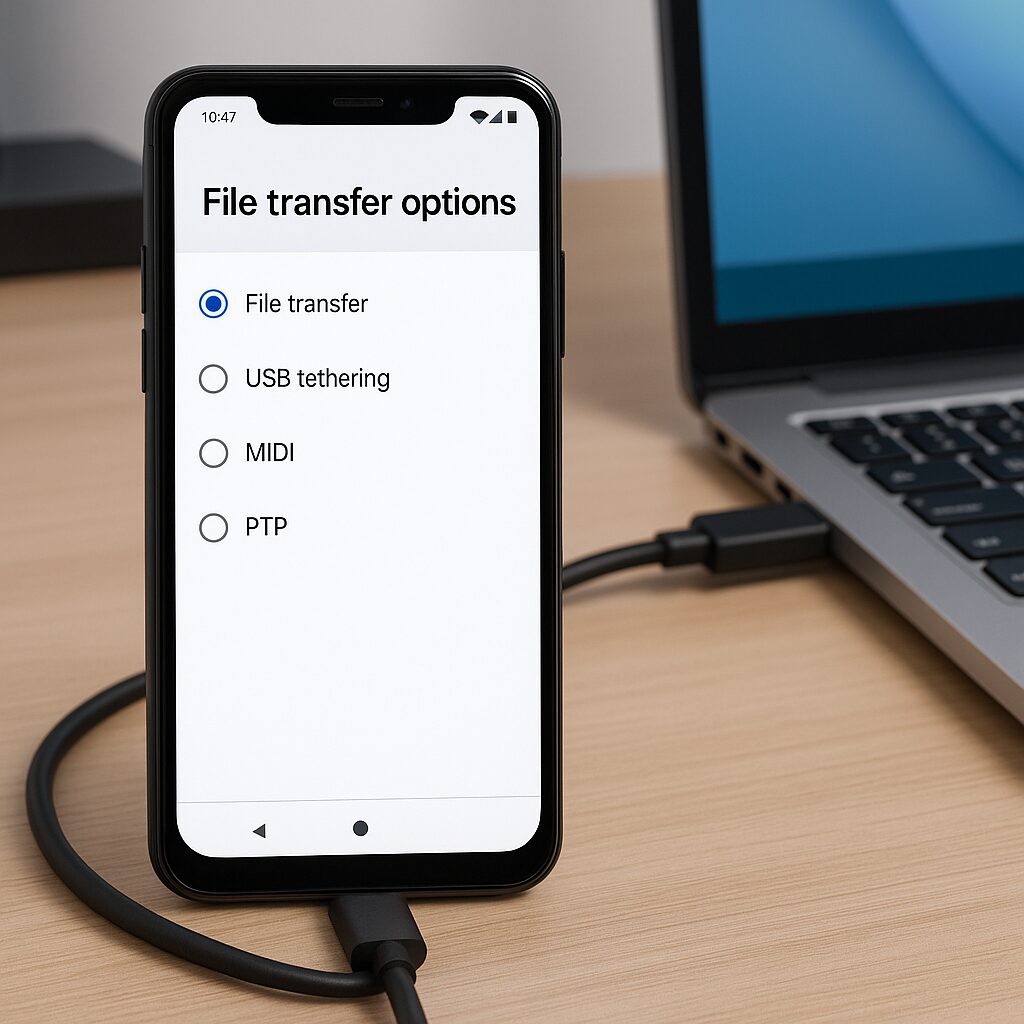
Most Android phones launch by default a “Charge only” mode when plugged in. File transfer (MTP) or photo transfer (PTP) are then locked. By pulling down the notification bar, a USB option often appears as “Storage device” or “File transfer.” Choose this mode so the PC can actually see your storage space.
Examine the Drivers on the PC
Windows does not always natively offer the appropriate driver for each smartphone model. Without automatic recognition, the device appears as “Unknown Device” in Device Manager. It becomes necessary to manually install the manufacturer’s driver or the MTP protocol driver provided by Microsoft. This step is often the key to unlocking the situation.
Step-by-Step Solutions
1. Enable USB Debugging
This mode, reserved for developers, allows a more direct exchange even when drivers are problematic. Here’s how to activate it:
- Open “Settings” then “About phone”.
- Tap seven times on “Build number” until the confirmation message appears.
- Return to “Settings”, enter “Developer options” and enable “USB Debugging”.
2. Update or Reinstall Android Drivers on Windows
A corrupted or outdated driver ruins any connection attempt. To fix this:
- Launch the Device Manager (Windows key + X).
- Locate your smartphone under “Mobile devices” or “Other devices”.
- Right-click → “Update driver” → “Search automatically”.
- If the operation fails, download the driver from the manufacturer’s website or install Google’s Android USB Driver.
3. Switch to Another USB Mode (PTP, MIDI)
If MTP does not respond, some PCs handle the PTP protocol (camera mode) better. Less comprehensive but sometimes sufficient for transferring images. MIDI, meanwhile, can be used for certain music applications. Experiment with these alternatives to identify which one works.
4. Use ADB via Command Line
When Windows categorically refuses to recognize your device, the ADB (Android Debug Bridge) tool can detect the smartphone for advanced operations:
adb devices– displays the list of connected devices.
adb kill-server && adb start-server– restarts the ADB service.
If your phone appears, you can then initiate transfers via adb pull or adb push, thus bypassing the Windows File Explorer.
Other Leads and Additional Tools
- Restart both devices: resetting their USB interface sometimes refreshes detection.
- Test a live Linux distribution on a USB stick: it often manages MTP better without additional drivers.
- Try a wireless transfer app (Wi-Fi Direct, Bluetooth, or third-party apps like AirDroid) if the cable remains silent.
Summary Table of Symptoms and Solutions
| Symptom | Quick Solution |
|---|---|
| Defective cable | Change the USB cable |
| USB mode on charging | Select “File transfer” (MTP) |
| Unknown device | Reinstall drivers via Device Manager |
| Intermittent detection | Enable USB debugging |
FAQ
Why does my PC not detect my Android smartphone?
Several reasons can cause this: a poor quality USB cable, a defective port, USB mode restricted to charging, or the absence of a suitable driver on your system.
How to reinstall Android drivers on Windows?
Open Device Manager, locate your smartphone, right-click then “Update driver”. Choose automatic search or point to the official driver from the manufacturer.
What is USB debugging and when to use it?
USB debugging allows advanced commands via ADB. It is used when Windows detects nothing despite a good cable and up-to-date drivers.
