

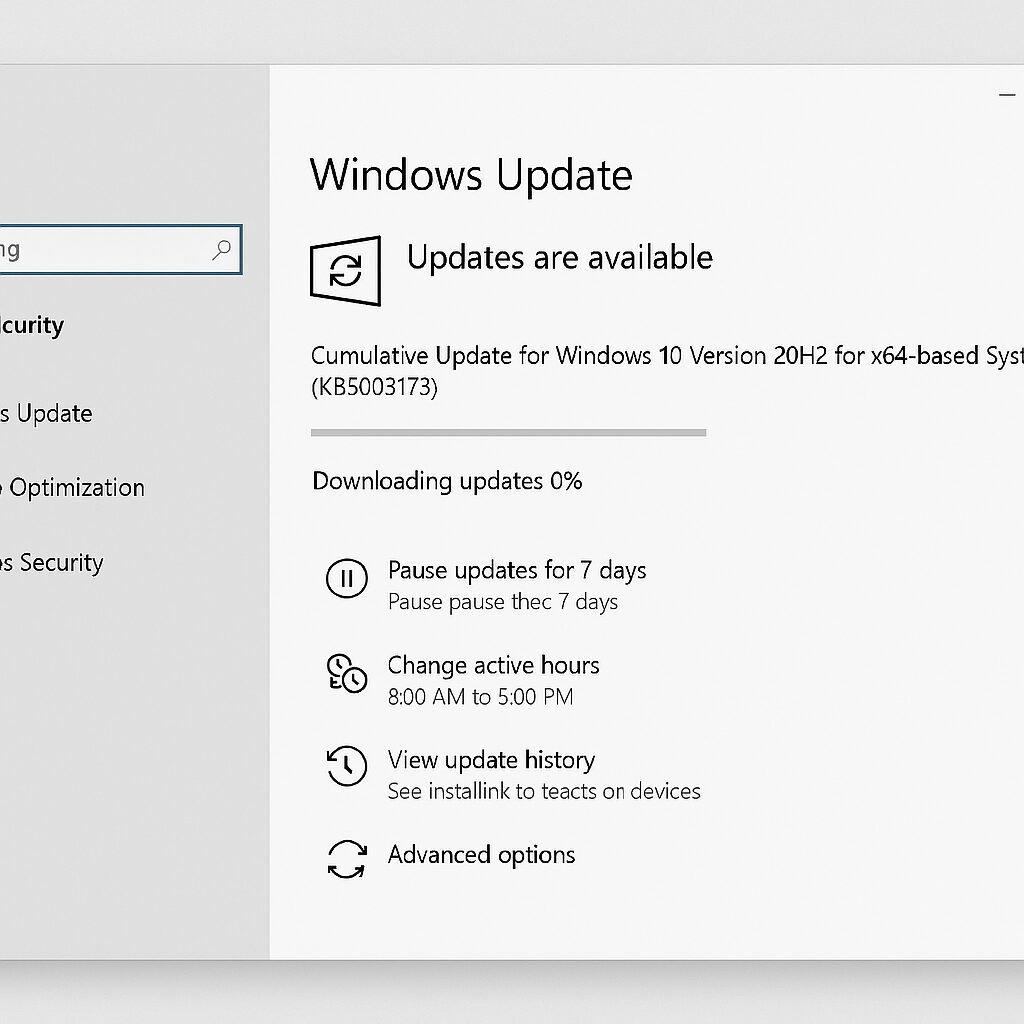
You start a Windows update and the percentage doesn’t move, stubbornly stuck at 0%? This kind of blockage often appears without warning, then frustration builds: the computer seems frozen, hours pass and nothing changes. To get your security patches and system updates back on track, several options are available to you, whether it’s an issue with an interrupted service, corrupted files, or an overzealous antivirus. Let’s review these solutions, from the simplest to the most technical intervention.
Somaire
In brief
🛠️ Windows Update services can get stuck: a restart via the Command Prompt often suffices to restart the process.
📁 Component corruption is common: resetting the SoftwareDistribution and Catroot2 folders removes problematic caches.
🧰 DISM/SFC inspect and repair system images: these built-in tools detect disk and file errors.
🔒 Third-party antiviruses or insufficient disk space can freeze progress: temporarily disable your security solution and free up a few gigabytes.
Why Windows Update remains stuck at 0%
The Windows Update engine relies on several services and folders. When one of them cools down or becomes corrupted, the download percentage no longer moves. Sometimes, it’s simply a network conflict or a misconfigured proxy that prevents Windows from reaching Microsoft’s servers. Other times, the antivirus interprets all new files as suspicious and quarantines them before they even install.
One might think the only culprit is the OS, but in reality it’s often a chain of factors: saturated storage, swapped system files, suspended services… At this point, the first reflex is to diagnose the source of the blockage.
Check the Internet connection
An unstable connection or an unsuitable proxy configuration sometimes prevents updates from downloading. Before any other manipulation, test your network:
- Open a browser and load several pages (Google, Wikipedia…)
- If the speed drops, restart your router or change the Wi-Fi channel,
- For corporate access, check with the administrator that the proxy or VPN is not filtering the Windows Update URL.
When the connection becomes stable again, restart the update: sometimes, this simple diagnosis is enough to unblock the process.
Restart Windows Update Services
Windows manages its updates via the services “wuauserv”, “BITS”, and “CryptSvc”. If one of them freezes, progress stops. By opening the Command Prompt as an administrator, type:
net stop wuauserv
net stop bits
net stop cryptsvc
net start cryptsvc
net start bits
net start wuauserv
This sequence stops then restarts the essential services. In the vast majority of cases, the temporary interruption is enough for Windows to regain control over the file preparation phase.
Reset Windows Update Components
When the services are running but not progressing, it is often a corrupted cache in SoftwareDistribution or Catroot2 causing issues. To reset these directories:
- Stop wuauserv, bits, and cryptsvc again,
- Rename C:WindowsSoftwareDistribution to SoftwareDistribution.old,
- Rename C:WindowsSystem32catroot2 to catroot2.old,
- Restart the services and relaunch Windows Update.
By creating new empty folders, Windows recreates its caches, free from corrupted files.
Advanced Solutions if the Blockage Persists
Use the DISM and SFC Tools
DISM (Deployment Image Servicing and Management) and SFC (System File Checker) are native utilities that check and repair system integrity. Launch the Command Prompt as administrator and type:
Dism /Online /Cleanup-Image /RestoreHealth
sfc /scannow
SFC will scan every system file, while DISM fills in gaps using online sources. Allow 10 to 15 minutes for each command, depending on your disk speed.
Check Disk Space and Antivirus
If your system partition exceeds 85% full, Windows may refuse to continue the update. Delete temporary files, videos, or large folders. Then, temporarily disable your third-party antivirus: some security suites filter anything that looks like an update and thus suspend the process without warning.
Use the Built-in Troubleshooter
Windows offers a “Troubleshoot” section in Settings → Update & Security → Troubleshoot → Windows Update. This interface automates the previous commands and fixes certain locked files. It’s a good starting point before attempting manual reset.
Prevent Future Blockages
- Plan restore points before each major update.
- Temporarily disable antivirus when downloading major builds.
- Maintain at least 20 GB of free space on C:.
- Regularly apply small cumulative updates to avoid buildup.
By consistently following these best practices, you greatly reduce the risk of a blockage at 0%.
FAQ
Why does my Windows Update remain stuck at 0%?
A frozen service, corrupted cache, or an antivirus checking files too early can freeze progress. Diagnosing the cause via Event Viewer logs and the built-in troubleshooter helps isolate the problem.
How do I reset Windows Update components?
Stop the wuauserv, BITS, and CryptSvc services, rename the SoftwareDistribution and Catroot2 folders, then restart the services to force cache recreation.
Can the SFC tool permanently resolve the blockage?
SFC repairs corrupted system files but relies on DISM to restore the Windows image. Together, they often provide sufficient repair.
What to do if Windows Update remains stuck despite everything?
As a last resort, manually download the latest Cumulative Pack from the Microsoft Update catalog, install it locally, then restart your PC before relaunching Windows Update.
{
“@context”: “https://schema.org”,
“@type”: “WebPage”,
“about”: {
“@type”: “Thing”,
“name”: “unblock Windows Update stuck at 0%”
},
“keywords”: [“windows update”, “blocking”, “reset”, “DISM”, “services”]
}
{
“@context”: “https://schema.org”,
“@type”: “Article”,
“headline”: “Windows Update stuck at 0%: how to unblock”,
“description”: “When Windows Update remains stuck at 0%, identify the cause and apply targeted solutions: services, SoftwareDistribution cache, DISM/SFC, and integrated troubleshooting.”,
“keywords”: [“windows update”, “blocking”, “reset”, “DISM”, “SFC”],
“mainEntity”: {
“@type”: “FAQPage”,
“mainEntity”: [
{
“@type”: “Question”,
“name”: “Why does my Windows Update remain stuck at 0%?”,
“acceptedAnswer”: {
“@type”: “Answer”,
“text”: “A frozen service, corrupted cache, or antivirus can freeze the progress. Use the integrated troubleshooting and check the logs to isolate the issue.”
}
},
{
“@type”: “Question”,
“name”: “How to reset Windows Update components?”,
“acceptedAnswer”: {
“@type”: “Answer”,
“text”: “Stop wuauserv, BITS, and CryptSvc, rename SoftwareDistribution and Catroot2, then restart the services to recreate the caches.”
}
},
{
“@type”: “Question”,
“name”: “Can the SFC tool definitively resolve the blockage?”,
“acceptedAnswer”: {
“@type”: “Answer”,
“text”: “SFC restores corrupted system files. For a complete solution, also run DISM /RestoreHealth before SFC /scannow.”
}
},
{
“@type”: “Question”,
“name”: “What to do if Windows Update remains stuck despite everything?”,
“acceptedAnswer”: {
“@type”: “Answer”,
“text”: “Manually download the Cumulative Pack from the Microsoft Update catalog, install it, then restart and relaunch the update.”
}
}
]
}
}
