
Connecting an external screen to your computer sometimes promises a visual miracle, but when the screen stays black with the error “No HDMI signal,” frustration sets in. Between finicky ports, outdated drivers, and invisible settings, the source of the problem can elude most users. This article offers a step-by-step guide to understand why the HDMI signal isn’t passing through and how to fix it without panicking.
Somaire
In Brief
⚡️ Hardware: Inspecting the HDMI cable and testing multiple ports often helps eliminate simple faults before any software manipulation.
📌 Windows Settings: Enabling external screen detection, adjusting the resolution, and selecting the correct display mode (Duplicate, Extend) proves crucial.
🎯 Graphics Drivers: An up-to-date driver ensures HDCP compatibility and stable signal transmission, especially on recent NVIDIA or AMD cards.
Initial Diagnosis
First of all, identifying whether the issue is purely hardware or software avoids multiplying unnecessary adjustments. The “No HDMI signal” error appears as soon as the screen is powered on. You then need to distinguish three scenarios: a faulty port or cable, the computer not transmitting anything, or a misconfiguration.
Hardware Check
- Inspect the HDMI cable for twists, bends, or exposed wires.
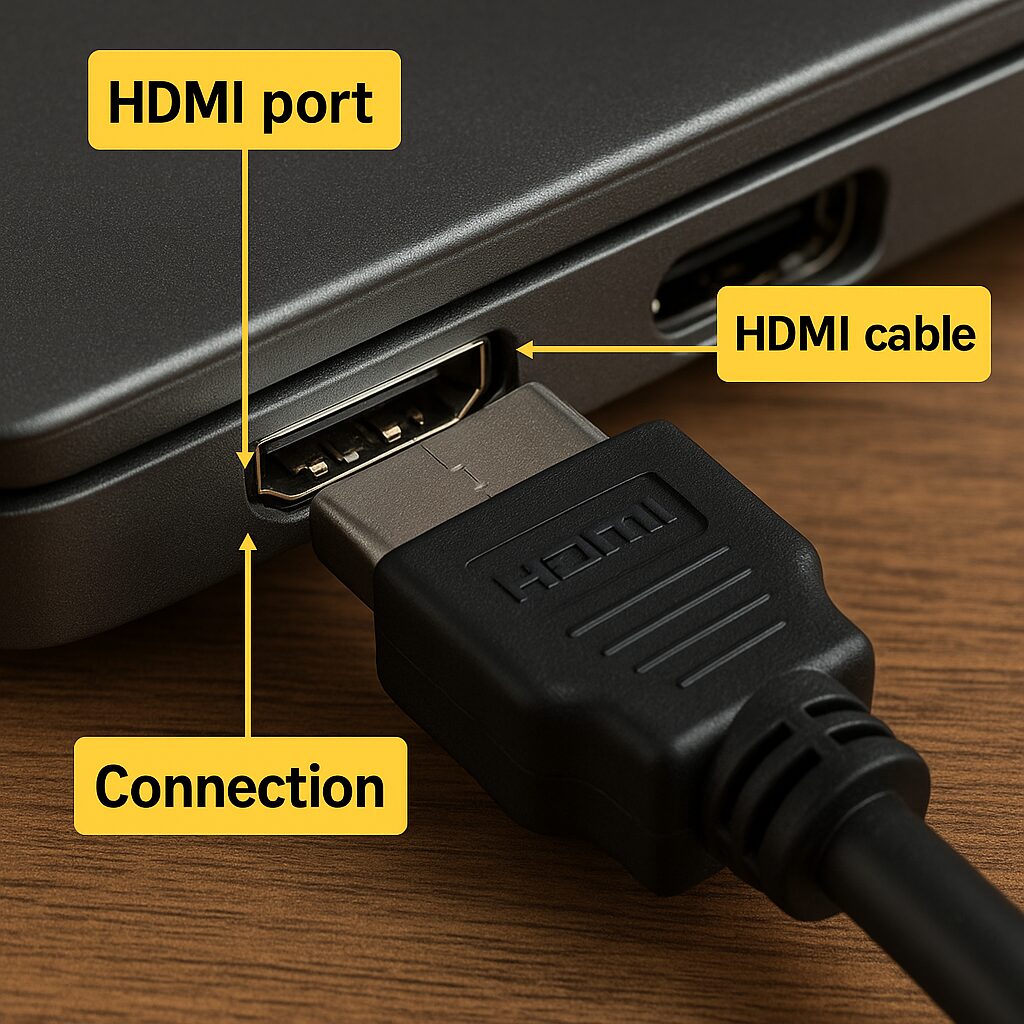
- Change the HDMI port on the screen (HDMI 1, HDMI 2…), then on the graphics card or laptop.
- Test the cable and screen with another device (console, TV box) to isolate the source of the fault.
System Settings
Once the hardware is validated, the next step is to dive into the operating system options. On Windows 10/11, the menu Settings > System > Display allows you to manually detect and activate a screen. Sometimes, the computer does not switch automatically; simply click “Detect” and choose the correct display.
Common Solutions
After this initial assessment, several quick fixes can resolve the “No HDMI signal” message. The most effective involve resetting the connection and updating the drivers.
Resetting the HDMI Connection
- Completely turn off the computer and the screen.
- Unplug the HDMI cable from both sides, wait 10 seconds, then reconnect firmly.
- Restart the screen before the computer so that the graphics card detects a display already present.
Update graphics drivers
An outdated driver can block signal establishment, especially if you switch to a 4K or HDR screen. On NVIDIA cards, use GeForce Experience; on AMD, launch Radeon Software. Installing the latest version ensures support for the latest HDMI standards (2.0, 2.1) and HDCP protection.
Specific cases
Depending on the type of machine, some additional adjustments may be necessary.
On a laptop
Laptops sometimes offer a hardware switch or a keyboard shortcut (Fn + F4/F8) to switch to the external screen. Checking the manufacturer’s documentation can avoid tedious searches. Additionally, some BIOS include an HDMI CPLD option that must be enabled to unlock the port.
HDCP and DRM compatibility
Some protected content (Netflix, streaming services) requires HDCP encryption. If the screen or cable does not support it, you will see a black screen despite a recognized connection. A table summarizes the versions:
| HDMI standard | Max resolution | Supported HDCP |
|---|---|---|
| HDMI 1.4 | 4K@30Hz | 1.4 |
| HDMI 2.0 | 4K@60Hz | 2.2 |
| HDMI 2.1 | 8K@60Hz | 2.3 |
Prevention and best practices
To reduce the risk of signal interruption, some habits can improve reliability:
- Choose a high-quality HDMI cable with shielding and gold-plated connectors.
- Avoid uncertified extensions or adapters.
- Regularly update the BIOS and screen firmware.
- Keep a Windows restore point before each major system update.
FAQ
- Why doesn’t my laptop detect the external screen?
- Most of the time, an outdated graphics driver or a loose connection prevents detection. Check the cable, update the driver, and use the dedicated Fn + F shortcut.
- How to force detection of a screen on Windows?
- Go to Settings > System > Display, then click “Detect.” If that is not enough, use the NVIDIA/AMD Control Panel to manually add a screen.
- What to do if the screen reports an unsupported signal?
- Reduce the resolution and refresh rate in the graphics settings. Check HDMI compatibility between the computer and the screen.
{
“@context”: “https://schema.org”,
“@type”: “WebPage”,
“about”: {
“@type”: “Thing”,
“name”: “HDMI signal problem on external screen”
},
“keywords”: [“HDMI”, “external screen”, “laptop”, “HDMI cable”, “resolution”]
}
{
“@context”: “https://schema.org”,
“@type”: “Article”,
“headline”: “No HDMI signal on external screen (PC/laptop)”,
“description”: “Learn how to diagnose and resolve the absence of an HDMI signal on an external screen from a PC or laptop, thanks to a practical guide covering hardware, drivers, and settings.”,
“keywords”: [“HDMI”, “external screen”, “laptop”, “HDMI cable”, “HDCP”],
“mainEntity”: {
“@type”: “FAQPage”,
“mainEntity”: [
{
“@type”: “Question”,
“name”: “Why doesn’t my laptop detect the external screen?”,
“acceptedAnswer”: {
“@type”: “Answer”,
“text”: “An outdated driver or a loose connection prevents detection. Check the cable, update the driver, and use the dedicated Fn + F shortcut.”
}
},
{
“@type”: “Question”,
“name”: “How to force detection of a screen on Windows?”,
“acceptedAnswer”: {
“@type”: “Answer”,
“text”: “In Settings > System > Display, click Detect. If necessary, add the screen via the NVIDIA or AMD Control Panel.”
}
},
{
“@type”: “Question”,
“name”: “What to do if the screen reports an unsupported signal?”,
“acceptedAnswer”: {
“@type”: “Answer”,
“text”: “Reduce the resolution and refresh rate. Check HDMI compatibility between the computer and the screen.”
}
}
]
}
}
