

| Key Points | Details to Remember |
|---|---|
| 📊 Fresh vs Historic Indexes | Compare recent activity and historical reach according to your needs |
| 🔍 Advanced Filters | Refine analysis with custom conditions on Trust Flow or Citation Flow |
| 🏗 Network Analysis | Map your backlinks to detect clusters and relationships |
| 🔗 Majestic API | Automate data collection to spot unindexed links |
| 🌐 Mentions Without Links | Identify brand mentions to turn into backlinks |
| 🚀 Integrations | Optimize your workflow thanks to webhooks and scheduled exports |
Majestic SEO has long been the reference for analyzing the quality and authority of backlinks. Yet, behind its elegant interface lie features often overlooked by most users. With over a decade of SEO experience, we have selected ten techniques that transform a basic use of Majestic into a true secret weapon. Each tip has been tested on complex audits and allows you to go far beyond standard reports.
Somaire
1. Exploit the Fresh and Historic Indexes
Most consultants settle for the default index, without realizing that Majestic offers two complementary views. The Fresh index covers links discovered over the last 90 days, ideal for tracking the immediate impact of a campaign. The Historic index, meanwhile, keeps track of links dating back sometimes several years.
By toggling between these two indexes, you can more quickly spot volatile backlinks and measure the stability of a profile. According to Majestic’s documentation, 30% of links do not remain online for more than two months; the Fresh index thus allows you to detect these creations or deletions before they influence your overall metrics.
Tip 1: Filter by Fresh to Spot Recent Opportunities
Start by choosing the Fresh index, then apply a filter on the minimum Trust Flow (for example TF>20). You will identify in just a few clicks sites that have just linked to your competitors. This early detection offers you a privileged window of contact to request a link or propose targeted content.
Tip 2: Compare Fresh vs Historic to Detect Enduring Links
Export your domain’s backlinks both in Fresh and Historic, then merge the lists (a simple VLOOKUP in Excel is enough). Entries present in Historic but absent in Fresh are links that have recently disappeared: you can then investigate to understand the removal and consider a recovery. This directly feeds your lost link recovery strategy.
2. Mastering Advanced Filters and Operators
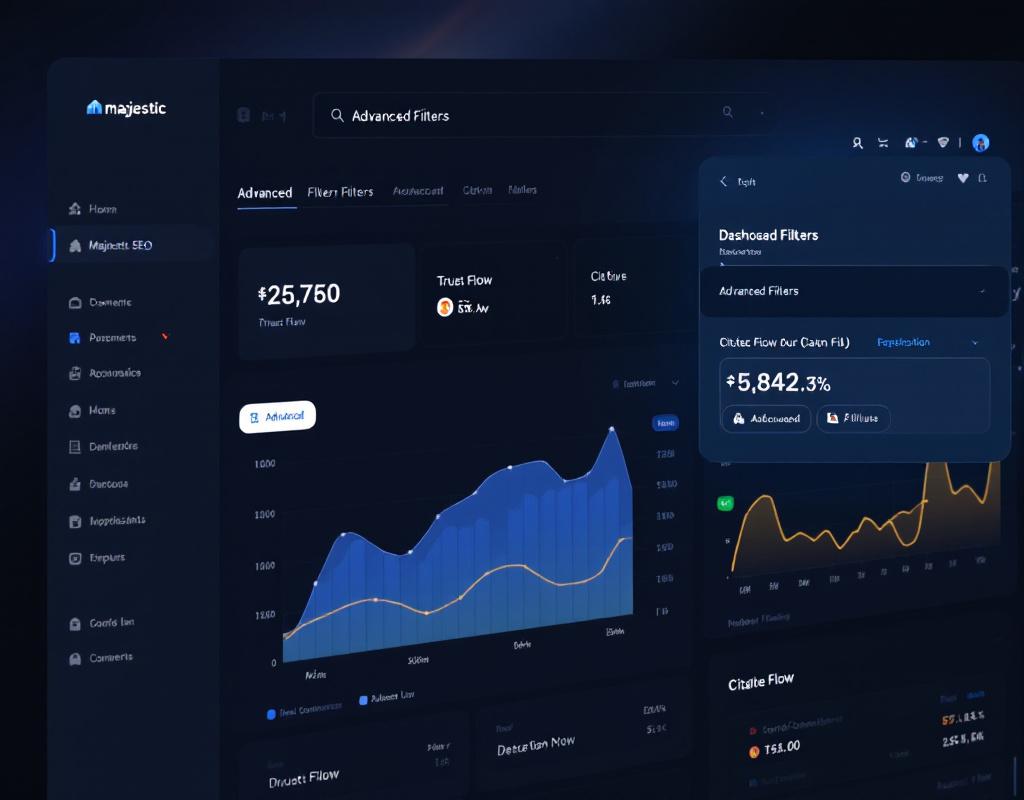
Beyond basic filters, Majestic offers a little-used Boolean syntax: you can combine multiple conditions on URL length, link type (Follow/Nofollow), or citation flow. Yet, it is by crossing these criteria that you truly refine your audit.
Imagine simultaneously searching for nofollow pages with high Trust Flow containing a specific keyword in the anchor: this is exactly what the AND, OR, and NOT operators make possible. This granularity boosts the relevance of your exports, especially on large volumes of backlinks.
Tip 3: Use the INURL Operator to Target a Specific Folder
In the filters, enter INURL:/blog/ and combine it with TF>15. You will isolate all pages in the “/blog/” directory of a site that carry a quality link. Ideal for segmenting your link profile by theme or site structure, and for addressing ultra-targeted partnership requests.
Tip 4: Nofollow but Influential with High Citation Flow
We too often tend to ignore nofollow links. Yet, by setting Link Type = NoFollow and CF>30, we often discover sites with strong domain authority publishing current content. A nofollow link can generate qualified traffic and serve as an interesting relay for a future conversion.
3. Mapping Your Backlink Universe
Understanding the topology of your external linking is not reserved for pure netlinking players. Majestic’s underused “Link Graph” feature allows you to visualize connections between multiple domains or subdomains.
By tracing these graphs, you quickly identify clusters of sites that frequently exchange links. You can then choose to strengthen your relationships with the most influential nodes and avoid closed networks that dilute your Trust Flow.
Tip 5: Export the Link Graph for Import into Gephi
Retrieve the GEXF file directly from Majestic and import it into Gephi. This graph visualization software highlights groups of interconnected sites. You may discover that a single host or the same CMS is behind 60% of your links; it’s up to you to adjust your prospecting accordingly.
Tip 6: Monitor New Clusters via Alerts
Activate alerts on key domains or on a set of specific pages. Each time a new cluster forms (that is, when several similar sites link to you at the same time), you receive an email. This early detection gives you control to immediately strengthen or diversify your link strategy.
4. Leveraging the API to Go Further
The web interface covers only part of Majestic’s capabilities. Thanks to the API (REST or SOAP), you can extract millions of lines of data, cross your analyses with your own databases, and automate your reports.
Periodic scripts can retrieve each morning the evolution of your Trust Flow, generate a weighted internal score with other KPIs, and feed a customized dashboard in Google Data Studio or Power BI.
Tip 7: Python Scripts for Daily Monitoring
With fewer than 50 lines of Python code, you can call the GetBackLinkData method, filter by date, and store the results in a MySQL database. Result: every morning, you have a report on new backlinks and lost ones, without manual intervention.
Tip 8: Integrate Majestic via Zapier/Webhooks
Majestic does not offer native webhooks, but by coupling the API with a service like Zapier, you can trigger exports when a condition is met (TF changing by more than 5 points, appearance of new referring domains, etc.). Your teams then automatically receive notifications in Slack or Microsoft Teams.
5. Track mentions and integrate Majestic into your workflow
Beyond backlinks, Majestic can detect mentions of your brand, even without a link. This is a goldmine for turning non-link mentions into backlink opportunities.
Finally, consider coupling Majestic with your CRM or project management tool. You can directly assign a teammate the follow-up task for each detected opportunity and track the success rate of your efforts.
Tip 9: Monitor brand mentions
Activate the “Mentions” filter in “Click-back-to-source.” You will see all citations of your brand name without a hyperlink. Use these results to graciously propose a backlink attribute and enrich your profile, often with a very quick ROI.
Tip 10: Synchronize Majestic with your CRM
Regularly export your lists of domains to contact and import them into Salesforce, HubSpot, or Pipedrive. Add custom fields such as “Last measured TF” or “Scheduled follow-up date.” This discipline transforms a simple database into a true SEO growth engine.
FAQ
What is the difference between the Fresh index and the Historic index?
The Fresh index lists links discovered over the last 90 days, while the Historic index archives the complete history of your link profile. Fresh is used for real-time monitoring, Historic for long-term analysis.
How to configure a boolean filter on Majestic?
In the Backlink History section, open the filter bar and use the operators AND, OR, NOT. For example, TF>20 AND INURL:/blog/ to target blog pages with a Trust Flow greater than 20.
Is it possible to automatically retrieve my data via the API?
Yes: the Majestic API offers methods such as GetBackLinkData or GetIndexItemInfo. You can schedule periodic requests and store the results in your database for customized reporting.
How to identify brand mentions without links?
Activate the “Mentions” filter in the report options. Majestic then scans the textual content of each page and displays occurrences of your brand, without the need for a hyperlink anchor.
