

The UPJV ENT simplifies the submission and tracking of your assignments thanks to an efficient dedicated space. In just a few clicks, you upload your file, verify its receipt, and follow the progress of the grading without leaving your browser.
🔍 Clear navigation: the interface is organized around a central dashboard where each course displays its submission module and the list of your pending or graded assignments.
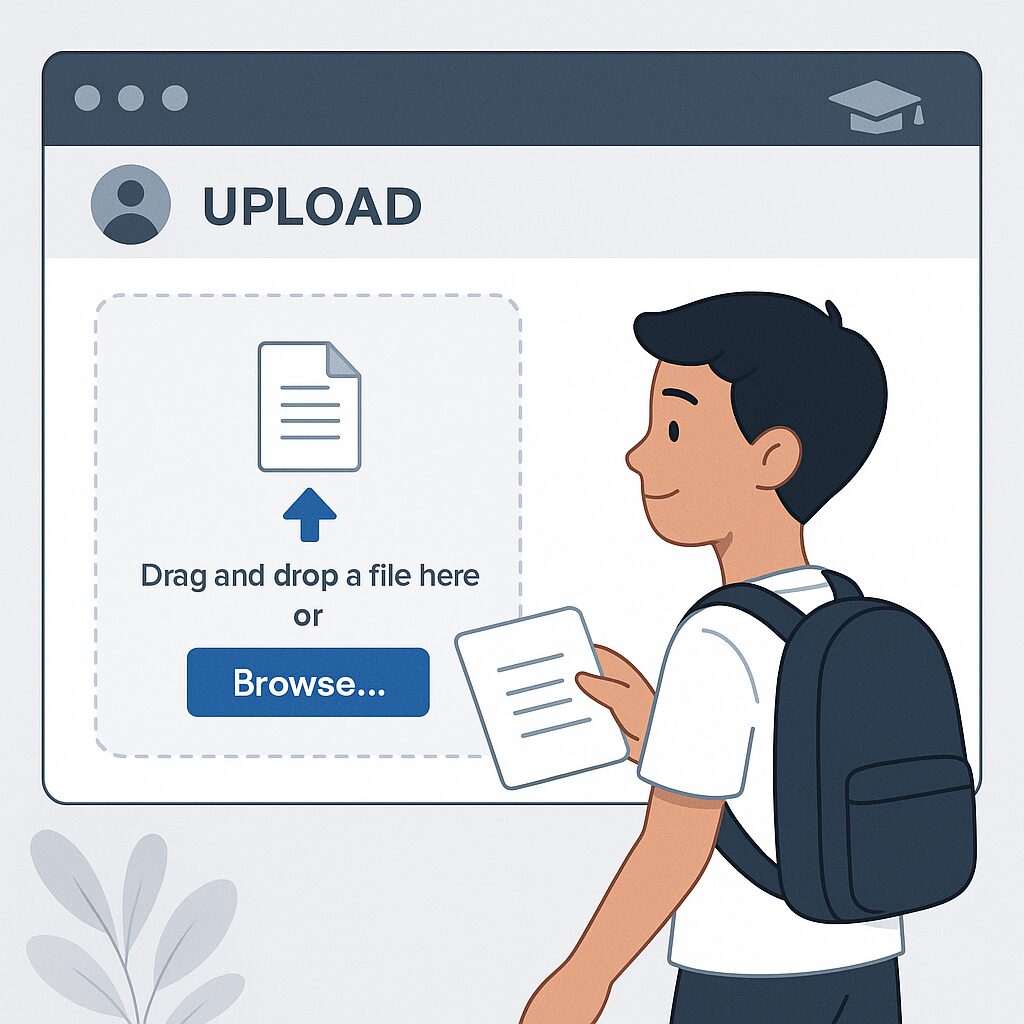
📤 Quick submission: select the course, choose the assignment, drag and drop your document, and confirm. The confirmation appears immediately, ensuring the recording.
🔔 Transparent tracking: a notification system alerts you at each step: file received, grading in progress, graded and made available for download.
Somaire
1. Logging in and Getting Started with the UPJV ENT
First of all, you need to access the digital workspace (ENT) and understand the main elements that make up your dashboard.
1.1 Creating and Retrieving Your Credentials
Your UPJV ENT account is based on a unique username and password. If you are a new student, the university sends you this information by email or SMS. In case of forgetting, the recovery page offers a secure form:
- Enter your university email address.
- Answer the security question.
- Receive a reset link.
This process ensures that only account holders can access the educational space.
1.2 First Steps on the Dashboard
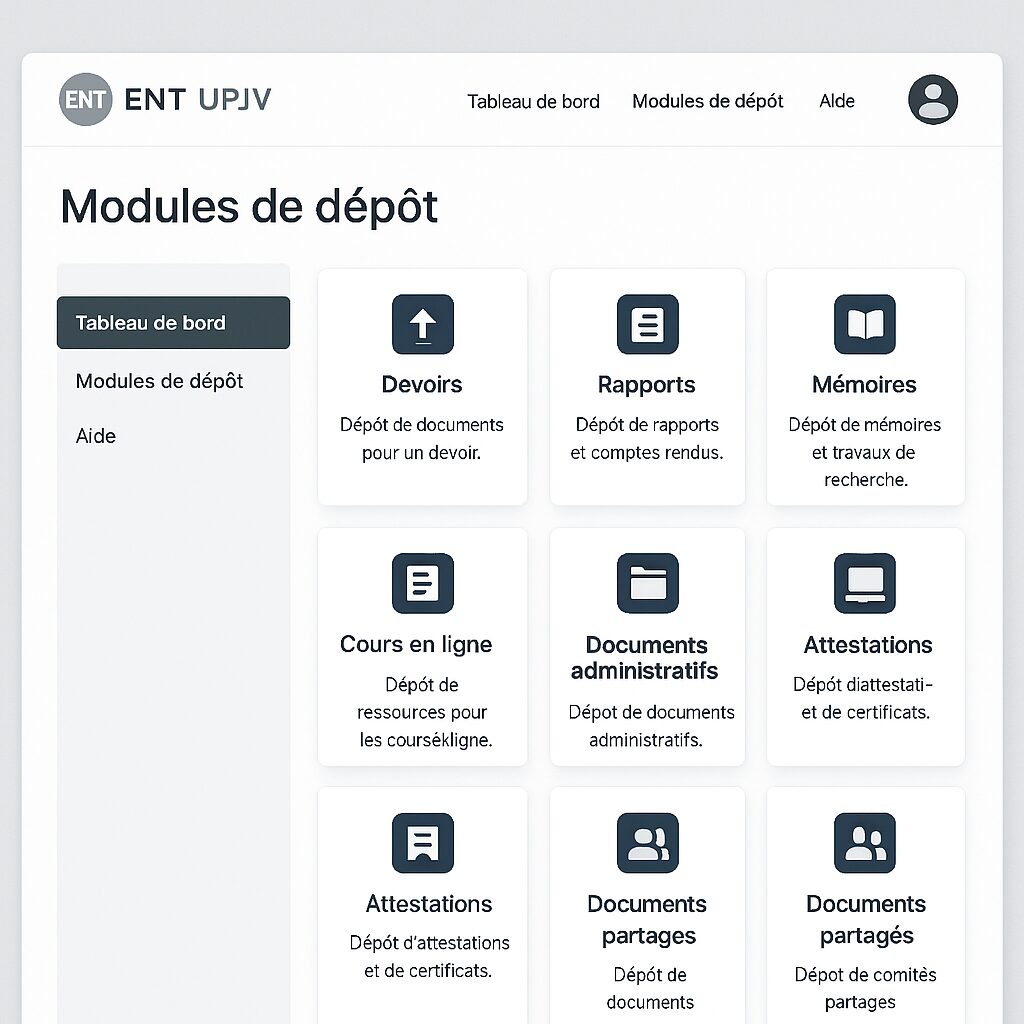
Once logged in, you discover several blocks: internal messaging, enrolled courses, educational resources, and especially the “Directed Work” or “Assignments” module. The layout remains the same from one year to the next, which facilitates getting started from your first login.
2. Submitting an Assignment on the Platform
Sending your assignment is done in the module specific to your course. Follow these steps to ensure your work is properly taken into account:
2.1 Accessing the Submission Module
In the side menu, click on “Work” or “Assignments.” A new screen lists all available assignments. Each line indicates:
| Assignment Title | Deadline | Status |
|---|---|---|
| Text Analysis | 10/15/2024 | Pending |
| Multimedia Project | 10/30/2024 | Open |
Check the “Status” column to see if the submission is active or closed.
2.2 Select the course and activity
Click on the “Submit” button opposite the desired assignment. A pop-up window displays:
- The instructions (format, word count, etc.).
- The accepted file type (.pdf, .docx, .pptx).
- The closing date and time.
Check each point carefully: a submission in an unauthorized format may be automatically rejected.
2.3 Upload your file and validate
Drag and drop your document or use the “Select a file” button. As soon as the upload reaches 100%, a preview shows the name, size, and upload time.
“Make sure the file name remains readable and understandable: firstname_lastname_assignment.pdf”, advises the educational service.
Finally, click on “Validate”. You will immediately receive a confirmation message. For added security, keep a screenshot of this summary.
3. Tracking and managing your work
After submission, your assignment goes through several statuses. The goal is to be able to follow each step without unnecessarily contacting the teacher.
3.1 Check the status of your submissions
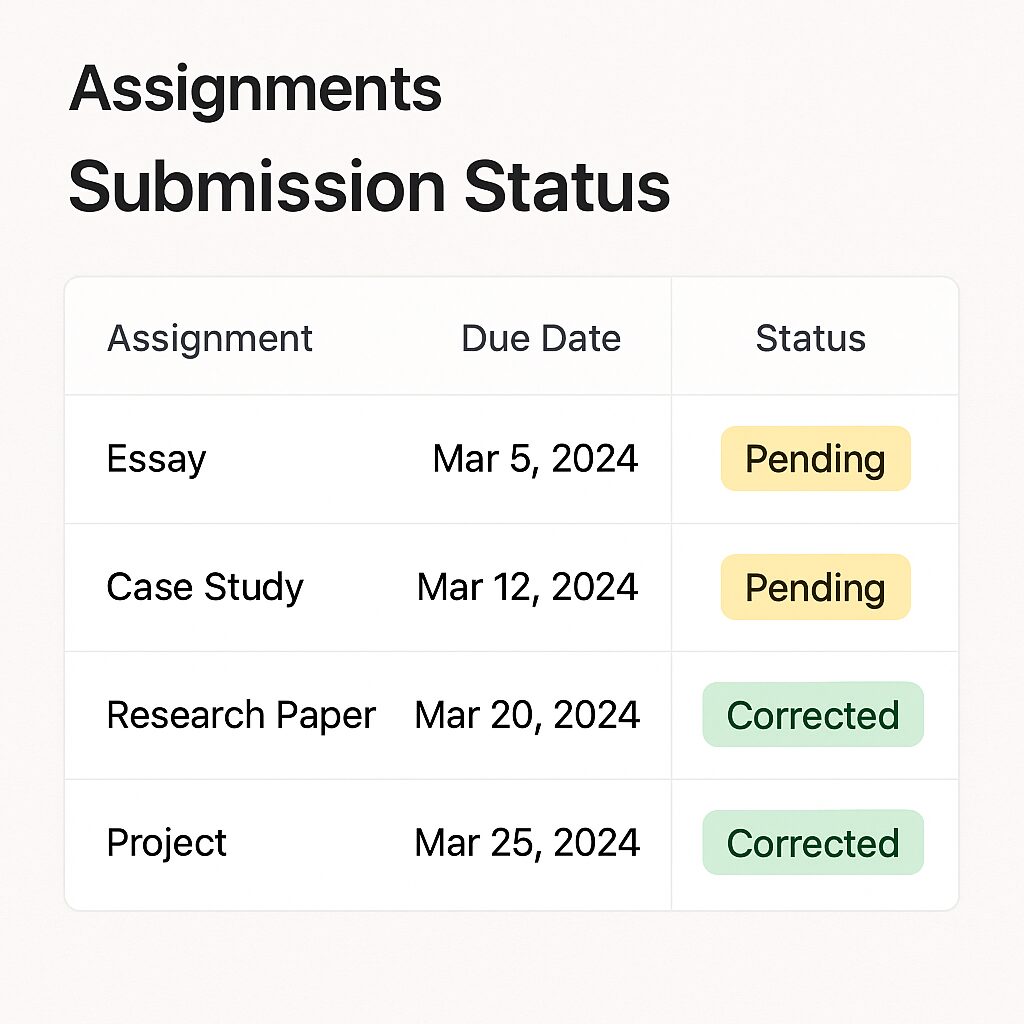
In the same list of assignments, the “Status” column evolves as follows:
- Received: the platform has successfully recorded your file.
- Under review: the teacher has started the evaluation.
- Graded: you can download the annotated copy and the grade.
A filter system also allows you to display only graded or pending assignments.
3.2 Receive a correction notification
As soon as the correction is validated, you receive an email and an alert in your ENT dashboard. Click on the link to open the “Results” area and download the annotated file.
4. Tips and best practices
Optimizing your experience on the ENT involves a few simple habits:
- Name your files clearly (module_firstname_lastname_date).
- Upload early to avoid connection peaks near deadlines.
- Regularly check the “Messages” tab to avoid missing additional instructions.
- Test opening the document after submission to verify its integrity.
By adopting these habits, you secure your submissions and limit last-minute oversights.
5. FAQ
How can I modify an assignment already submitted?
You cannot replace a file that has already been validated. To correct an error, contact the teacher directly via the internal messaging system and propose sending a new version.
Can I submit multiple files for the same assignment?
Only the format and number of authorized documents are specified in the instructions. If multiple attachments are requested, the platform will accept a compressed file (.zip) containing all the elements.
What should I do if the deadline has passed?
Once the deadline has expired, the status changes to “Closed” and submissions are blocked. In case of a legitimate reason (technical problem, medical certificate), send proof to your academic office.
Where can I find my graded assignments?
In the “Results” tab, accessible from the “Assignments” menu. There you can download your graded copies and see your grades.
Can I receive an SMS alert?
Currently, only email notifications and notifications via the ENT are available. Remember to activate alerts in your profile so you don’t miss anything.
Who to contact in case of connection problems?
The technical support of UPJV university remains your contact. Open a ticket from the “Help” section of the ENT or send an email to [email protected].
{
“@context”: “https://schema.org”,
“@type”: “WebPage”,
“about”: {
“@type”: “Thing”,
“name”: “ENT UPJV submission and tracking of assignments”
},
“keywords”: [“ENT UPJV”,”assignment submission”,”work tracking”,”university platform”,”tutorial”]
}
{
“@context”: “https://schema.org”,
“@type”: “Article”,
“headline”: “ENT UPJV: Complete tutorial: how to submit and track your work and assignments on the platform”,
“description”: “Detailed tutorial to submit your assignments and track their status on the ENT UPJV, with illustrations and practical advice.”,
“keywords”: [“ENT UPJV”,”assignment submission”,”work tracking”],
“mainEntity”: {
“@type”: “FAQPage”,
“mainEntity”: [
{
“@type”: “Question”,
“name”: “How to modify an already submitted assignment?”,
“acceptedAnswer”: {
“@type”: “Answer”,
“text”: “You cannot replace an already validated file. Contact the teacher to propose a new version.”
}
},
{
“@type”: “Question”,
“name”: “Can I submit multiple files for the same assignment?”,
“acceptedAnswer”: {
“@type”: “Answer”,
“text”: “If multiple attachments are requested, submit a compressed file (.zip) containing all the elements.”
}
},
{
“@type”: “Question”,
“name”: “What to do if the deadline has passed?”,
“acceptedAnswer”: {
“@type”: “Answer”,
“text”: “Once the date has expired, submission is blocked. Send a supporting document to the administration for a possible reopening.”
}
},
{
“@type”: “Question”,
“name”: “Where can I find my corrected assignments?”,
“acceptedAnswer”: {
“@type”: “Answer”,
“text”: “Download your corrected copies in the “Results” tab accessible from the “Work” menu.”
}
},
{
“@type”: “Question”,
“name”: “Who to contact in case of connection problems?”,
“acceptedAnswer”: {
“@type”: “Answer”,
“text”: “Open a ticket from the “Help” section or send an email to [email protected].”
}
}
]
}
}
