

Toutatice represents the digital gateway for students, teachers, and administrative staff. Between messaging, homework diary, timetable, and educational resources, the ENT (Digital Workspace) centralizes everything you need daily. In this tutorial, you will find each step — from opening the login page to advanced use of the tools — to master your space without wasting time.
Somaire
In brief
🖥️ Quick access: open Toutatice via your browser and check compatibility (recent Chrome, Firefox, Edge).
🔑 Credentials: use your academic login and a secure password; remember to note your codes.
📂 Clear interface: the dashboard groups your messages, timetables, and homework diaries in a few clicks.
🔒 Security: log out properly and clear the cache to protect your data.
Step 1: Access the login page
1.1 Choose a compatible browser
Most of Toutatice’s features rely on modern web standards. To avoid issues, prioritize:
| Browser | Minimum version |
|---|---|
| Google Chrome | 85+ |
| Mozilla Firefox | 78+ |
| Microsoft Edge | 80+ |
| Safari | 13+ |
If you encounter an error message or degraded display, update your browser or try a recent alternative.
1.2 Find the official URL
Each academy has its own dedicated address. Generally, the URL follows the format:
https://toutatice.ac-[academy number].fr
Make sure to enter the domain name correctly to avoid unofficial sites.
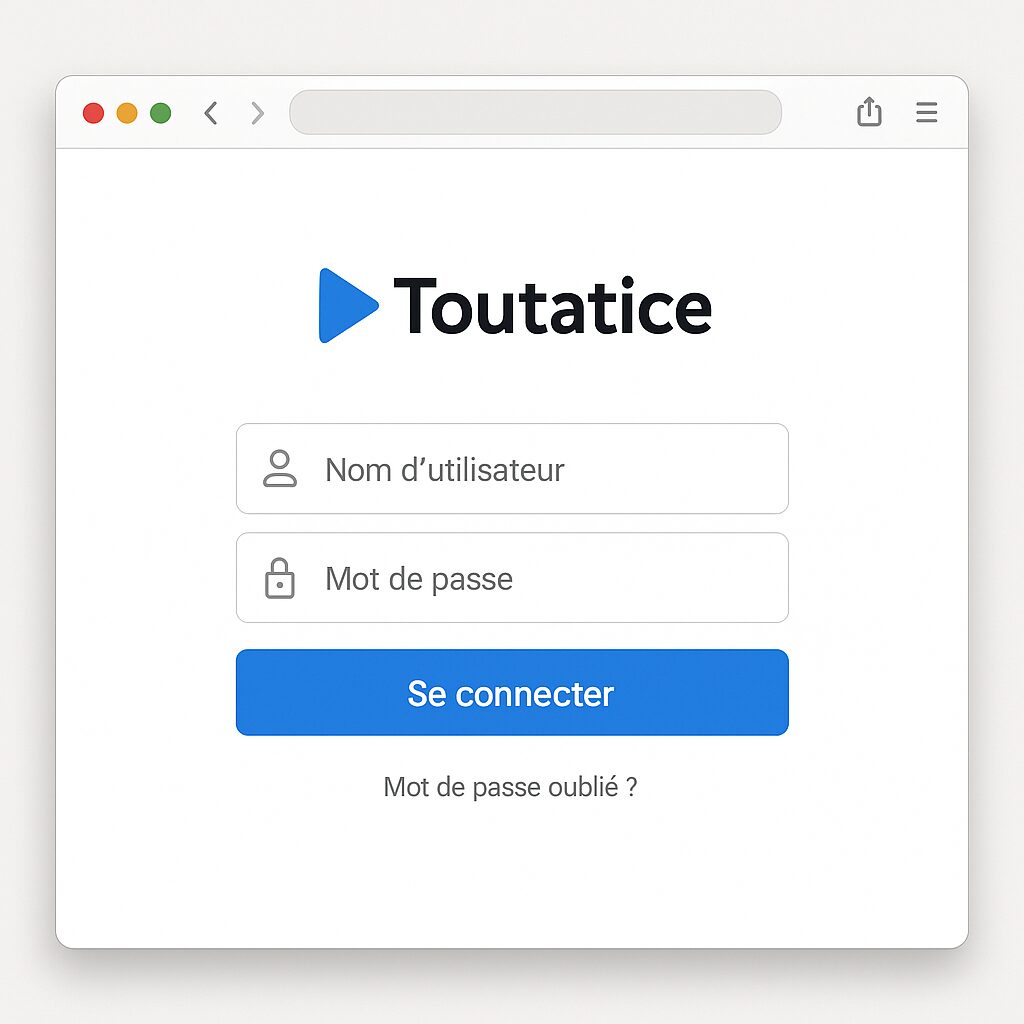
Step 2: Enter your credentials
- Academic username: generally composed of your firstname.lastname or a student code.
- Password: initial one provided by your institution, remember to change it at first login.
If forgotten, the reset procedure via the “Forgot password” page will guide you step by step. Note that a temporary link will be sent to your academic email.
Step 3: Discover the ENT interface
3.1 The Dashboard
At first display, the dashboard presents:
- Internal messaging for exchanges between teachers, students, and administration.
- Textbook grouping homework and shared resources.
- Timetable updated in real time according to your schedule changes.
A quick regular glance is enough to not miss announcements or last-minute changes.
3.2 The Side Menu
The left column structures access:
- Home always returns to the dashboard.
- Shared Documents centralizes the files made available.
- School Life displays your absences, delays, and possible sanctions.
- External Services redirects to third-party applications (regional ENT, collaborative tools).
3.3 Profile Customization
At the top right, your name opens a menu: you can modify your password, add a profile photo, or set the interface language there. These settings ensure a space that reflects you and enhance security.
Step 4: Using Key Features
4.1 Viewing and Sending Messages
The internal messaging works like a classic email:
- Click on « New message » to compose.
- Select recipient(s) via the integrated directory.
- Attach one or more files if necessary.
- Send and track the reception status (read, unread).
4.2 Exploring the Textbook
Each teacher publishes homework and materials there. You can filter by date or subject, download documents, or even leave comments if the option is enabled.
4.3 Attending an Online Class
Some institutions offer virtual classrooms. You access the room with one click, with integrated audio and chat. Remember to test your webcam and microphone before the session.
4.4 Accessing Shared Resources
Note: depending on your institution’s policy, some folders remain private or require authorization.
The « Shared Documents » section organizes educational files by levels, subjects, or collaborative projects.
Step 5: Logging Out Securely
Once your session is over, click on your name (top right) then on « Logout ». This closes access to your account and prevents any risk of unauthorized access if you work on a public or shared computer. Do not hesitate to clear the cache and cookies for more peace of mind.
FAQ
How do I reset my password if I have lost my credentials?
On the login page, click on « Forgot password » and follow the instructions that will be sent to you by academic email.
What to do if the ENT displays a 500 error?
This error is often temporary. Refresh the page or wait a few minutes. If it persists, contact your institution’s IT service.
Can I customize the appearance of my ENT?
Yes, via the profile settings. You can notably choose a light or dark theme and add a profile image.
How to access external applications from Toutatice?
In the side menu, under the « External Services » section, click on the desired tool. You will be redirected while keeping your authentication.
Can the Toutatice mobile application be downloaded?
Depending on your academy, a mobile app is available on Android and iOS. Search for « ENT Académie [your academy] » in your store.
