

An animated WebP can offer a modern alternative to GIFs, with smoother rendering and often reduced file sizes. However, adjusting its settings without degrading visual quality requires a well-honed protocol. This guide details step-by-step an optimized workflow, designed for those who want to combine speed and finesse in their WebP animations.
Somaire
In brief
🔧 Key tools: FFmpeg for image extraction, libwebp for re-encoding, and a frame optimizer to eliminate excess without altering the rendering.
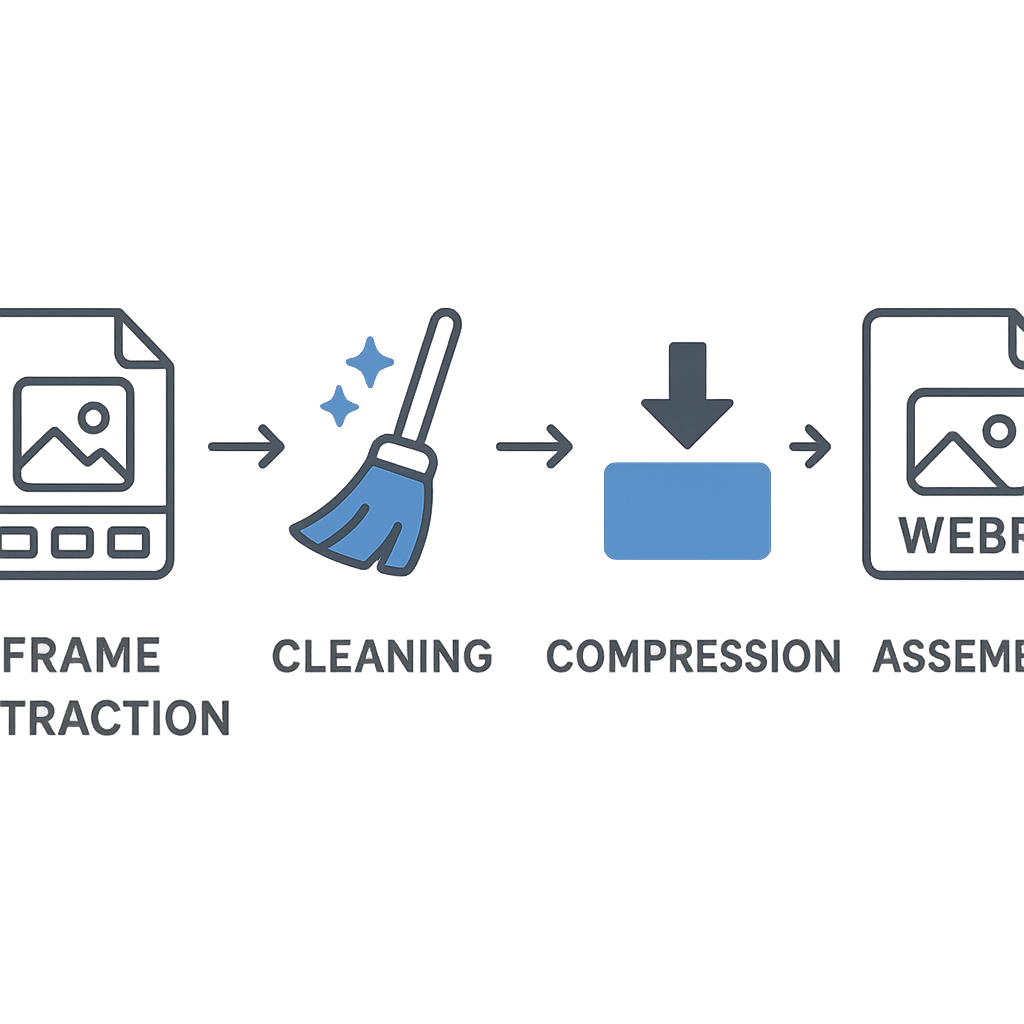
⚡ Quick steps: extraction, cleaning, compression, re-encoding. Chaining these phases takes less than five minutes for a short clip.
🖼️ Preserved quality: adjusting the -lossless parameter of the WebP codec guarantees chromatic integrity, even on subtle gradients.
✅ Weight reduction: file size often drops below 50% of the original while maintaining smoothness and image sharpness.
Why optimize an animated WebP?
Adopting WebP for your animations means benefiting from a modern format supported by most recent browsers. Unlike GIFs, it handles 24-bit color compression and an alpha channel more efficiently. But without a series of adjustments, you can quickly end up with files larger than expected or annoying artifacts on transitions. This post shows how to leverage each phase of the workflow to control size and quality.
Size challenges versus performance
Too large a file size directly impacts loading time, bandwidth, and user experience, especially on mobile. While excessive compression can introduce color blotches and stuttering, especially on fast sequences. Between these two extremes lies a balance zone achieved by a progressive approach: controlling bitrate, inspecting frames, and adjusting codec settings.
Prerequisites and tooling
This workflow relies on free and open-source command-line tools. Their chaining avoids heavy back-and-forth between graphical interfaces and handcrafted scripts.
- FFmpeg to separate and recombine frames.
- libwebp (cwebp & webpmux) for lossless animation encoding.
- Gifsicle or a third-party frame optimizer to analyze and remove redundant images.
- An image editor (GIMP, Photoshop) for occasional visual control.
Quick workflow steps
1. Frame extraction
Rather than importing your video or GIF directly, start by extracting each image:
ffmpeg -i animation_source.gif frame_%04d.png
This command generates numbered files, ready to be processed. The PNG format preserves original colors and transparency.
2. Cleaning and reducing frames
An animated clip often contains identical or nearly identical images. By using Gifsicle in optimize mode, you detect and eliminate redundancies:
gifsicle --optimize=3 frame_*.png -o cleaned_%04d.png
Thanks to this pass, the output remains intact while significantly lightening the batch of files to encode.
3. Encoding in lossless WebP
The strength of lossless WebP lies in its lossless data compression algorithm. With cwebp, you can specify:
cwebp -lossless -mt -q 100 cleaned_*.png -o animation.webp
The -mt option enables multi-threading, and -q 100 ensures faithful encoding. The -lossless parameter avoids any chromatic or edge degradation.
4. Assembling the animation
Once the frames are compressed, the final assembly is done via webpmux:
webpmux -frame animation_{n}.webp +100 -loop 0 -o final_animation.webp
The counter +100 sets each frame to 100 ms, and -loop 0 ensures infinite repetition. Fine adjustments can be applied if certain sequences require specific timing.
Quick comparison of animated formats
| Format | Colors | Transparency | Compression | Browser support |
|---|---|---|---|---|
| GIF | 256 colors | 1 bit | low | universal |
| APNG | 24 bits | 8 bits | moderate | partial |
| Animated WebP | 24 bits | 8 bits | optimized | modern |
Advanced tips and tricks
To save a few more KB, you can:
- Adjust the number of threads of
cwebpaccording to the hardware configuration to speed up the operation. - Manually detect static regions and replace them with a single repeated frame.
- Adjust the delay between each frame to balance dynamics and smoothness (±10 ms depending on the context).
FAQ
Why prefer animated WebP over GIF?
WebP handles 24-bit color and an 8-bit alpha channel, offering a richer palette and gradients without banding. Compression is also more efficient than GIF.
Is it always possible to maintain zero loss?
Yes, by using the -lossless option of cwebp. However, the size gain may vary depending on the complexity of the images.
How to adjust frame timing?
With webpmux, add +duration after each frame (in ms). A script can automate these values if they differ.
